Tech Info Library

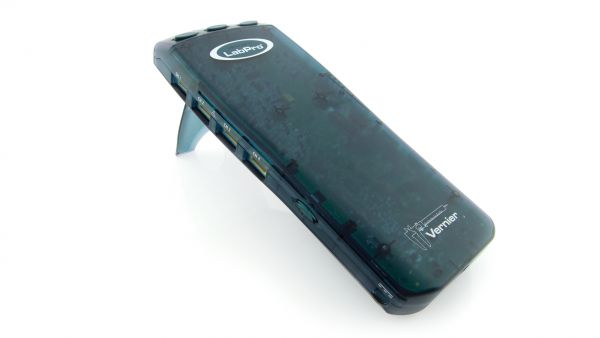
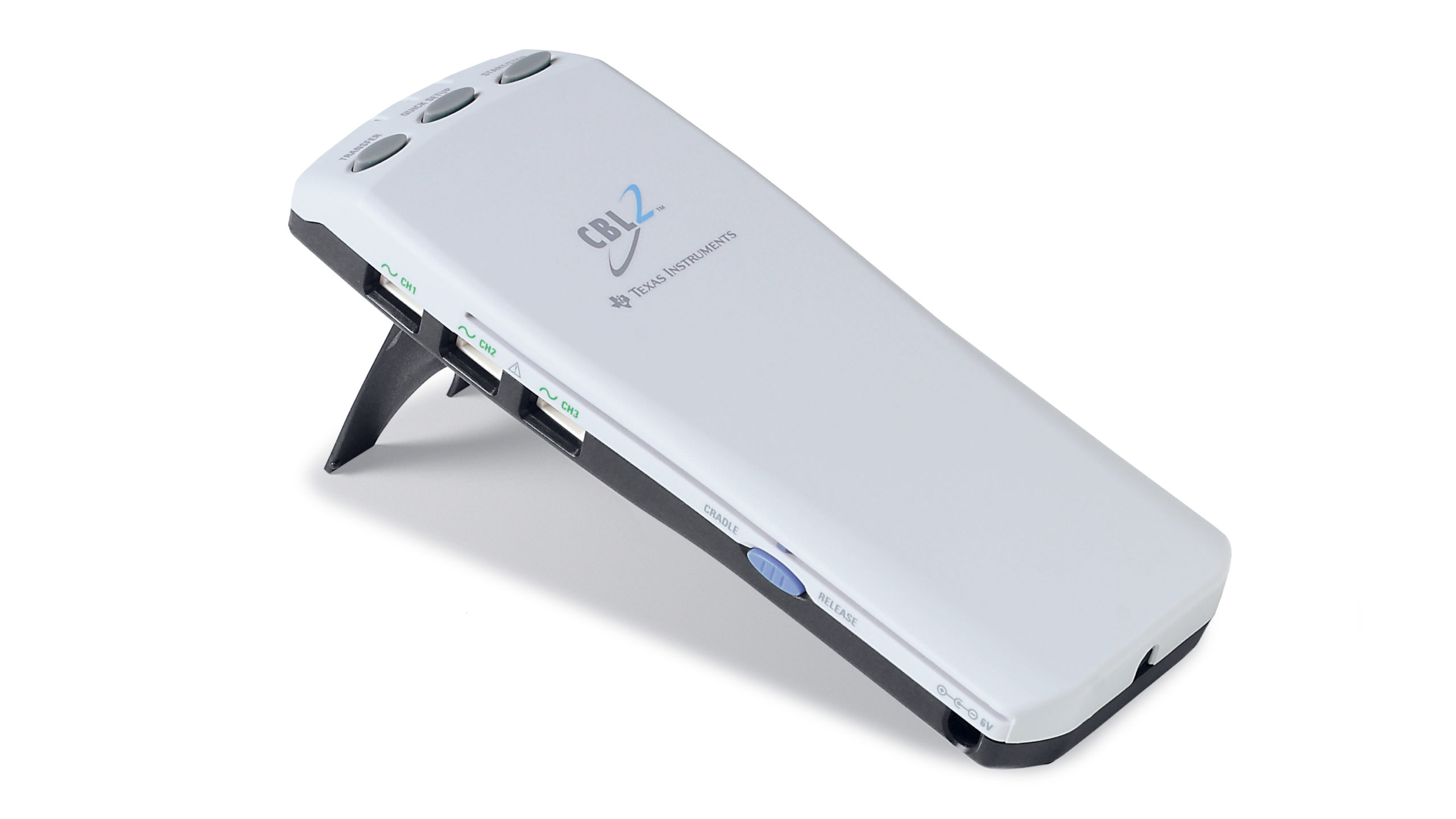
How do I update my LabPro/CBL2?

About this FAQ

  • Created Dec 19, 2001
    by Ian Honohan
  • Updated Aug 10, 2011
    by David Lim
  • Article #1030

Search FAQs

Support by Product

The latest versions of LabPro/CBL2 operating system and calculator program updates can be downloaded from our web site at:

http://www.vernier.com/support/updates/labpro-and-cbl2/

Follow the instructions and links to obtain the appropriate update.

The updates do not work with every possible hardware/software combination. Below are details about compatibility of the different update methods and some general trouble shooting tips.

********************************
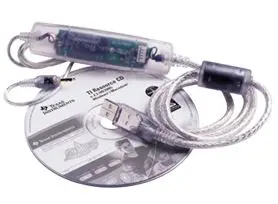
Update using TI-GRAPH LINK cable:
>Updates both interface operating system and calculator programs.
>Updates either LabPro or CBL2.
>Computer operating system and TI-GRAPH LINK cable:
-Windows 95/NT: Gray or Black GRAPH LINK cable only.
-Windows 98/2000/ME/XP: USB, Gray or Black GRAPH LINK cable.
-Mac OS 7.1 or higher: Requires TI-Connect software and Gray or USB GRAPH LINK cable.

When using the TI-Graph Link cable updater, it is important to connect the LabPro or CBL 2 interface to the computer through the Graph Link cable before you start the update procedure. The interface must also have AC or fresh battery power. After you start the updater, it will automatically find the attached CBL 2 or LabPro and start the update. You should not have to do anything after you double-click the updater icon. If it fails to find the interface for any reason, a window containing details of the update will appear. This window is titled: "Update TI Device", and contains a Browse button, Start Transfer button, and a number of radio buttons showing details of your Port/Device/Cable Selections. If this box should appear at any time during the transfer, CLOSE IT by pressing the "X" in the upper-right corner. Then make sure that your CBL 2/LabPro is powered and your cable is properly connected to your computer and your interface, then double-click the updater icon again to restart the process.

After the Windows updater successfully completes the OS update, a dialog box will appear stating: "Transfer Completed Successfully". If you do not see this message at the end of the transfer, you should try the transfer again. If it fails again, contact us for assistance.

********************************
Update using Serial or USB cable
>Updates interface operating system only.
>Updates LabPro only.
>Computer operating system and cable type.
-Windows 95: Does not work.
-Windows NT: Serial only.
-Windows 98/2000/ME/XP: USB (must have Logger Pro ver 2.1 or higher for USB) or Serial cable.
-Mac OS 7.1 through Mac OS 9.2: USB (must have Logger Pro ver 2.1 or higher) or Serial cable.

********************************
Possible Problems:
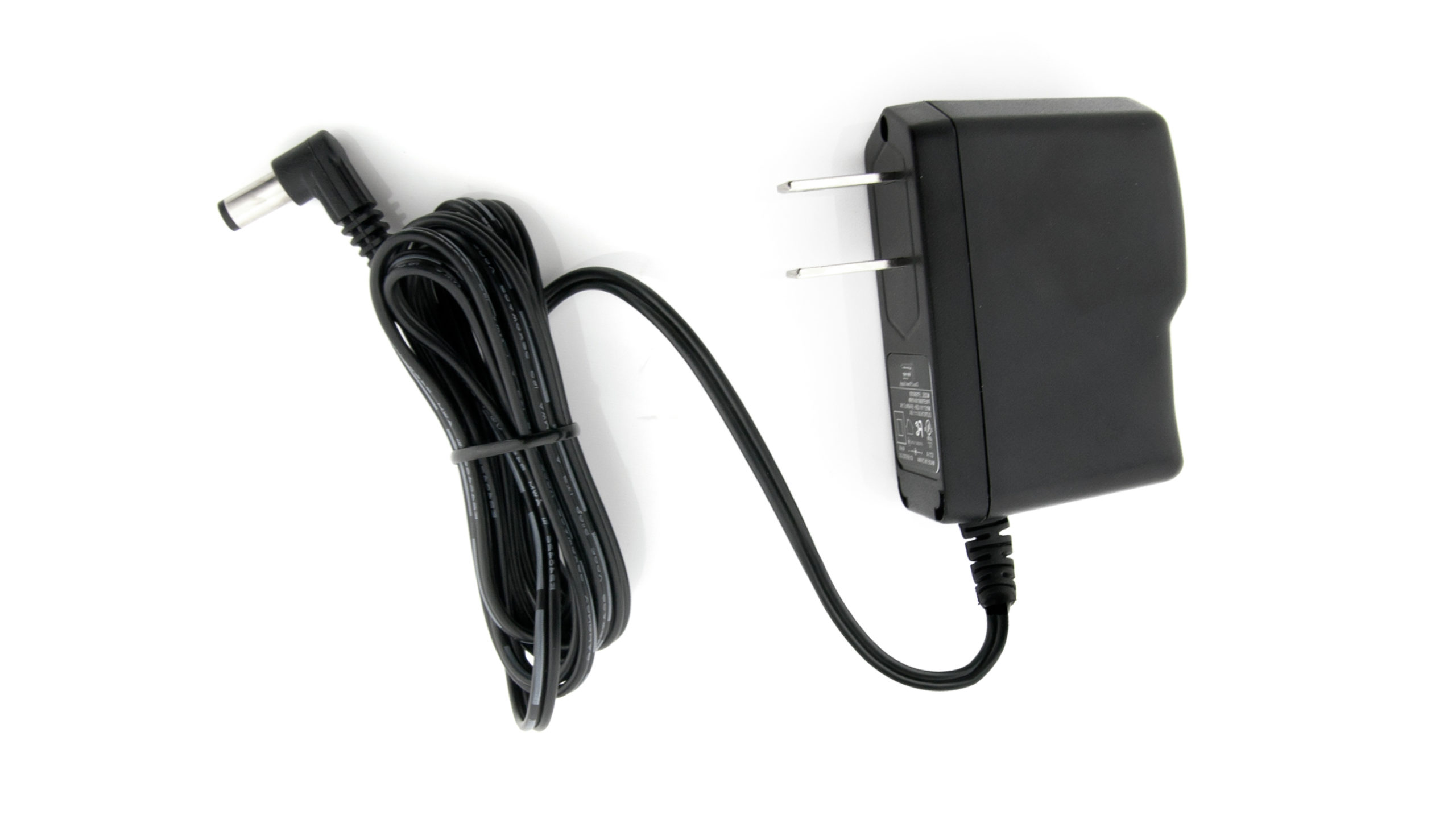
>LabPro does not give the 'happy beeps' when you plug in the AC adapter or insert batteries.
-Check to be sure that the AC adapter is firmly inserted and plugged into an active power socket, or be sure that the batteries are fresh.
-Unplug the AC adapter or remove the batteries, wait 30 seconds. Insert the adapter or the batteries and allow the LabPro to sit for 5-10 minutes. If the interface has started up with it's 'happy beeps' in that time you should hear a little click when you press any one of the three buttons. If it is still not responding see the next tip.
-Give the interface power with the AC adapter or batteries, wait 10 seconds, then press and hold the START/STOP button on the LabPro. If the LabPro flashes and emits the 'happy beeps' contact Vernier for further assistance.

>LabPro gives unfamiliar beeps and flashes, or will not communicate with computer or calculator.
-Try and run the update again to ensure that the LabPro has a good operating system.
-If the beeps and flashing are constant (continue for more than about 10 seconds), contact Vernier for further assistance.

>Cannot transfer the DataMate program and/or receive errors when trying to run the DataMate program.
-Be sure that your link cable is securely connected to both the calculator and the LabPro.
-If you are using a TI-83 Plus, check to be sure that there is enough memory to transfer the DataMate application. You will need about 50000 bytes of free memory in the calculator's Archive. Delete some other applications to free up Archive memory.
-If you are using a TI-89, TI-92, TI-92 Plus or Voyage 200, you need to delete or unlock an older version of the DataMate program before a newer version can be transferred to your calculator. The easiest method is to do a memory reset. You can also press [2nd], VAR-LINK and use the [F4] button to mark all of the programs that start with the letters: "dat". Then press [F1] and choose 7:Unlock. Now try the transfer from the LabPro again.
-If you are using a calculator from the TI-83 Plus or TI-84 Plus family, you may need to acquire the latest operating system from Texas Instruments. Go to:http://education.ti.com/educationportal/sites/US/nonProductMulti/apps_latest.html

Need more assistance?

Fill out our online support form or call us toll-free at 888.837.6437.

© 2012 Vernier Software & Technology, LLC. All rights reserved.
Set Your Location »