
You cannot use any LabQuest internal sensors when using LabQuest as an interface with Graphical Analysis or Graphical Analysis Pro.
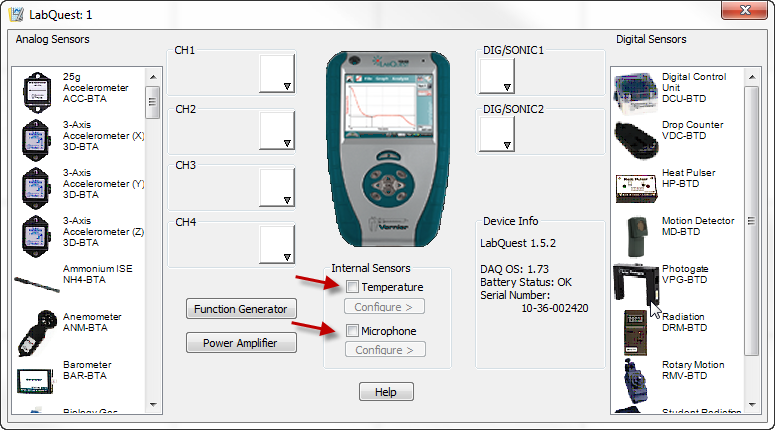
Different versions of LabQuest have different internal sensors available. The Internal Microphone (all models) and Internal Temperature (original LabQuest and LabQuest 2) can be used as sensors with our Logger Pro software. Other internal sensors* are not supported.
- Verify that your computer has a version of that works with your model LabQuest
Original LabQuest—Logger Pro 3.7 or newer
LabQuest 2—Logger Pro 3.8.5 or newer
LabQuest 3—Logger Pro 3.16.1 or newerFinal Logger Pro release, v3.16.2
https://www.vernier.com/downloads/logger-pro-updates/
- Connect the LabQuest to the computer via the USB cable and open Logger Pro.
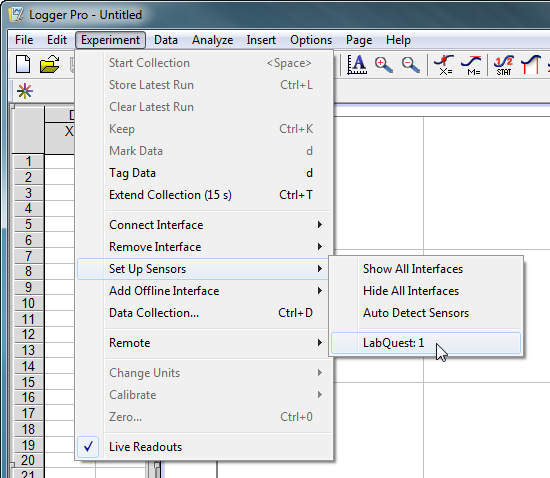
- Within Logger Pro, go to the Experiment menu, select Set up Sensors, then select the LabQuest.
- The LabQuest sensor set up window will open, and you can select to add either the internal microphone or the internal temperature sensor.
Related Links
*These internal sensors on a LabQuest cannot be used as sensors in Logger Pro
- GPS sensor (LabQuest 2 and LabQuest 3)
- 3-axis Acceleration sensors (LabQuest 2 only)
- Light sensor (LabQuest 2 only)