
Logger Pro will display the message “No Device Connected” in the toolbar when a LabPro cannot be found by the software. Below are troubleshooting steps to solve the most common problems. Note: LabPro cannot be with use with Graphical Analysis or Graphical Analysis Pro.
Hardware Issues
- General Troubleshooting Process. If you have multiple computers and interfaces, the best test is to try methodically switching interfaces, cables, power supplies, and computers to see if the problem is with a piece of the hardware or with the computer.
- Take one of your completely working stations, and try swapping out different components, one at a time.
- First try swapping out a different interface, then a new connector cable, etc.
- If you can trace the problem to one of these pieces, we can probably repair or replace that part. Specific issues are covered below.
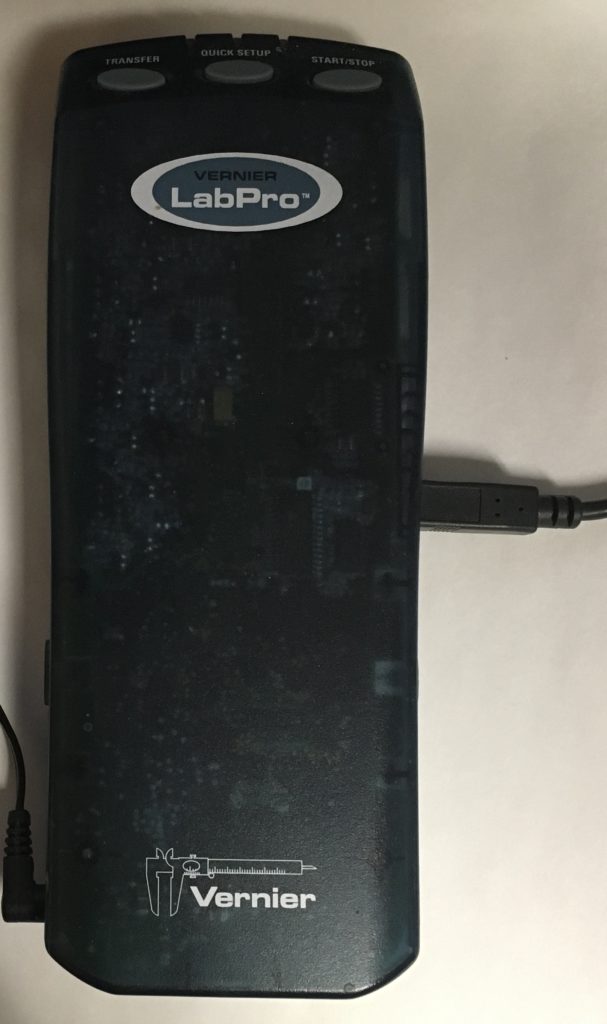
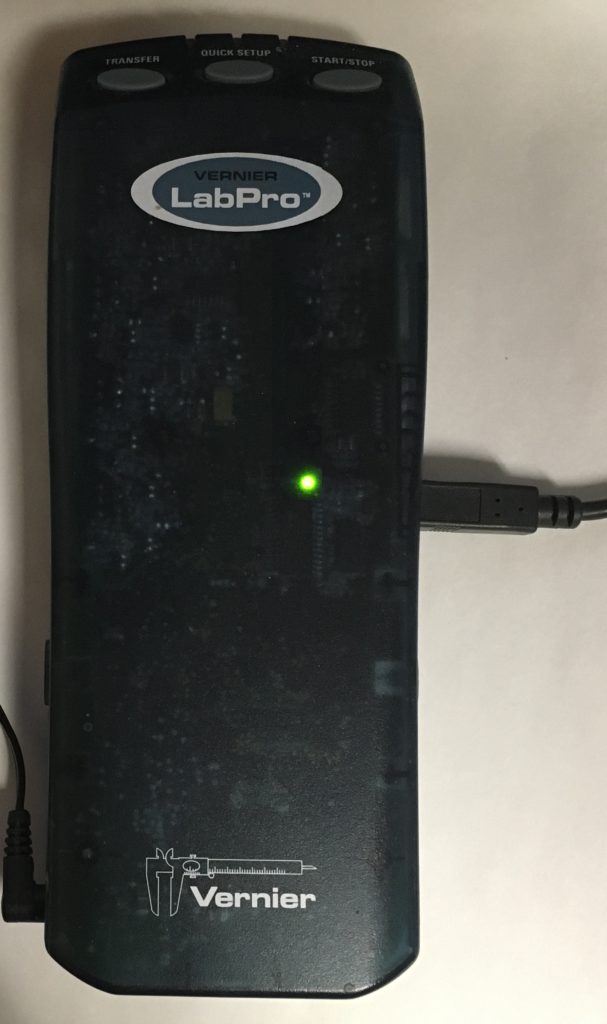
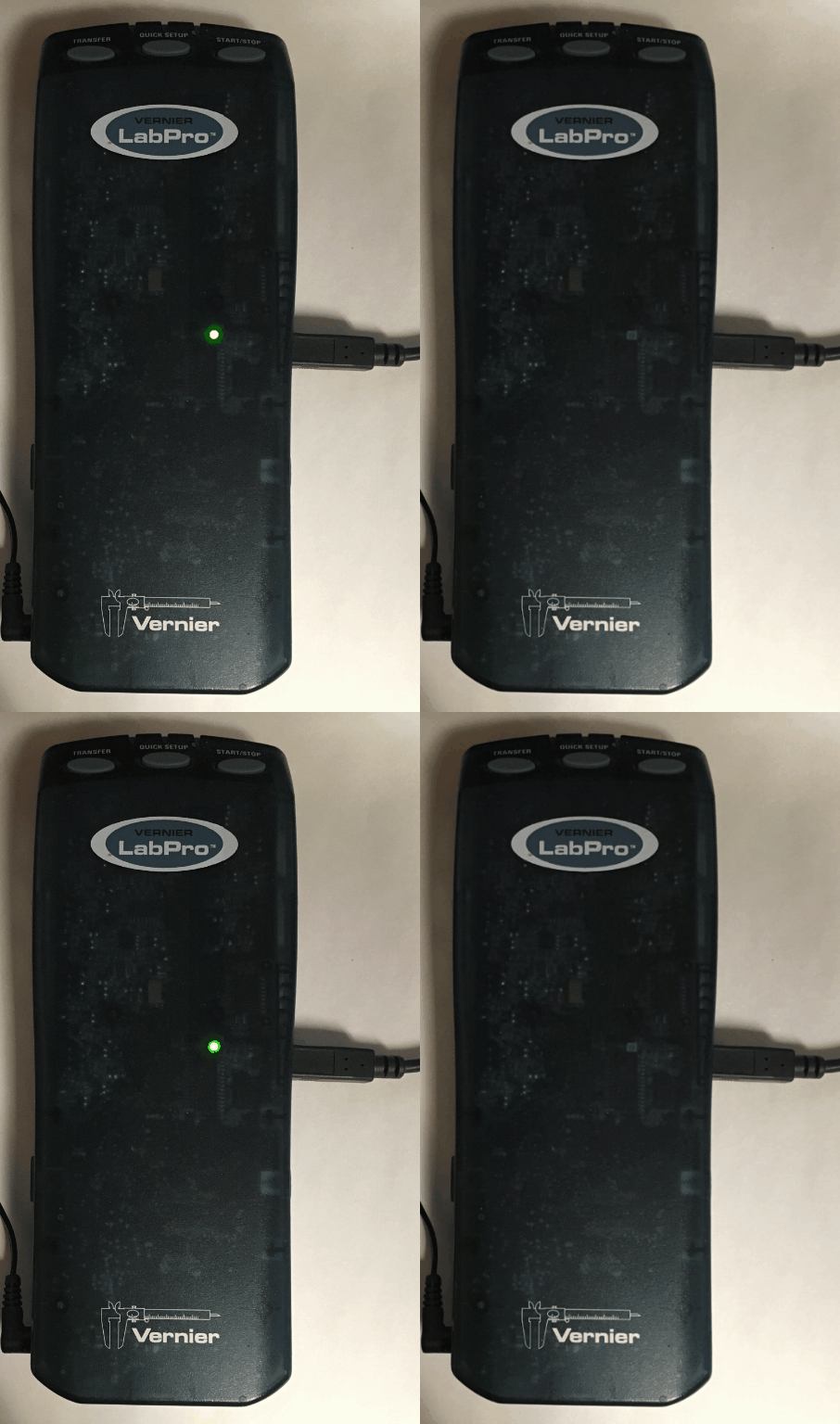
- Will the LabPro power up? Remove the batteries and disconnect the AC adapter from the LabPro. Connect the AC adapter again and wait for the LabPro to power up. The lights will flash across the top of the LabPro and it will play the ‘happy sound‘. If this fails, see:
How do I update a LabPro or CBL2 interface using a TI Connectivity Cable? - Is the LabPro identified in Logger Pro but then disappears? There may be a failed USB port in the LabPro. If this happens, the LabPro may not connect at all, or it may connect but then mysteriously disappear. Damaged USB ports can be repaired by Vernier’s repair department. Contact Vernier technical support for a Return Merchandise Authorization (RMA).
- Did you use a third party AC adapter? If you connected an AC adapter to LabPro other than the adapter that originally came with the unit, the LabPro may have blown an internal fuse. Try connecting to a Vernier-supplied LabPro AC adapter that worked with a different LabPro to see if the LabPro powers up. If this does not solve the problem, we may be able to repair the unit. Contact Vernier technical support for a Return Merchandise Authorization (RMA).
- Is your LabPro connected to a USB hub? If so, make sure that it is powered hub. An unpowered USB hub may not provide enough power for the interface to function correctly.
Software Issues
- What version of Logger Pro are using? To find out, open Logger Pro and choose “About Logger Pro“. The exact version number will be in the About screen. You may need to update you software in order to get the latest signed USB drivers. The free upgrade of Logger Pro 3 is available at:
https://www.vernier.com/downloads/logger-pro-updates/Please note that older computer operating systems may not work with the latest version of Logger Pro. For a summary of which versions of Logger Pro work with the your OS, see the Logger Pro FAQs on the web page indicated above.
- How was Logger Pro installed on your computer? (Windows) If you did not use an official Logger Pro 3 installer, the installation may lack the USB drivers for the LabPro. Reinstalling Logger Pro 3 can help. To verify that the installers are properly installed, see:
Are the device drivers installed correctly? (For Windows with LabPro, original LabQuests, LabQuest Mini, and LabQuest Stream) - Could Logger Pro be running from a network location? It is possible that Logger Pro is not actually installed on the computer, and is instead located on a server. For Logger Pro to communicate with LabQuest or LabPro, certain driver files are required on the local computer. If Logger Pro is only on the network, the USB drivers will not be present on the local computer, and Logger Pro will not find the LabPro. To fix this, install Logger Pro on the local computer. For details, see:
Can I install Logger Pro 3 to run from a server or network location? - Does your LabPro OS need to be updated? Sometimes an older operating system can cause the LabPro to operate poorly. To check/update the LabPro OS, power up your LabPro, connect it to your computer, and run Logger Pro 3. If you get 4 beeps the LabPro needs to be updated