
The following tips for Motion Detectors apply to all of the following products:
- Motion Detector (MD-BTD)
- Go! Motion (GO-MOT)
- CBR 2 (CBR2)
- Go Direct® Motion Detector (GDX-MD)
- The maximum sample rate that you can use for the motion detector is 50 Hz, which equates to a sample interval of 0.02 seconds. Since the motion detector emits ultrasound and detects an echo, the speed of sound is a limiting factor in the use of the sensor. So when you use the sensor, the equipment has to give the ultrasound enough time to go out to the object and back. Therefore we don’t recommend sampling faster than 50 Hz (i.e., more often than 0.02 seconds). If the room has hard ceilings, floors, or walls, the motion detector may detect an ultrasonic pulse that has bounced around the room instead of the direct reflection from the target. This problem is worse at high data rates. Try slowing down the rate of data collection (i.e., less than or equal to 30 samples/s).
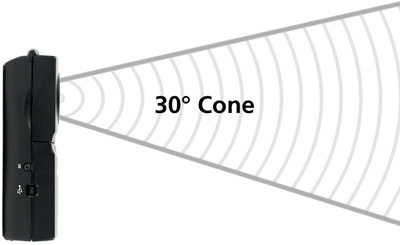
- When using a motion detector, it is important to realize that the ultrasound is emitted in a spreading cone about 30 degrees wide. Anything within the cone of ultrasound can cause a reflection and possibly a spurious measurement. These unintentional reflections may come from a desk, chair, or computer in the room. This object can be very small. Remember that the motion detector stops checking for echoes when it gets its first recognizable echo. It does not do the following (which might be better if it were possible): Check all echoes that come back and then select the strongest one.
- In some cases everything seems to work fine, except that as the target object moves more than a certain distance away from the motion detector, the motion detector still reports the same value (i.e. 2 meters). It is reporting the distance to the first object in the cone of ultrasound that sends back a strong echo, which in this case is a table two meters away from the motion detector and some distance to the side. You may be able to reduce this problem by moving the table, covering it with a soft cloth, or angling the Motion Detector away from the table. You also can get reflection from the surface of a table supporting the motion detector. This can be reduced by raising or tilting the motion detector above the table or covering the table with a soft cloth.
- Look at position data first. If you begin with a velocity or acceleration graph and obtain a confusing display, switch back to the position graph to see that it makes sense. Sometimes a stray object will interfere, and it is much easier to detect the problem while looking at the position information.
- A great way to set up the Motion Detector is to monitor the live readout of position to be sure the values match what you expect. Don’t get too close. The Motion Detector does not properly detect objects closer than 0.15 meters due to the time it takes to switch from ultrasound emission to ultrasound detection mode. This minimum distance depends on which model of motion detector you have.
See Which Motion Detector model do I have?. - Avoid soft targets. Sometimes a target may not supply a strong reflection of the ultrasound. For example, if the target is a person wearing a bulky sweater, the resulting graph may be noisy. It helps for the person to carry a book or other hard, flat object to create a stronger reflection. If the target is a ball, we have found that playground kick balls and others with a smooth surface work best.
- If the velocity and acceleration graphs are noisy, try increasing the number of points used to calculate the derivative. This will have a smoothing effect on the graph.
See How do I adjust the number of points used in derivative calculations? - Multiple motion detector s in the room can interfere with each other when they are within each other’s active cone.
- Sometimes isolating the detector from ambient vibrations can help. Putting a paper towel under the detector when using it on something like a ramp helps. Also, make sure that the motion detector is at least one meter from any computers.
- Cart mode: When using a Motion Detector on a dynamics track or air track, where the maximum distance to be measured is just a meter or two, try the cart mode setting. Motion detectors with a hinged section have a switch located under the hinged lid with a cart setting and a person/ball setting. Go Direct Motion has a Motion (cart) channel accessible in Sensor Channels. If your model is older and does not have different modes, consider putting a sock over the Motion Detector. This may sound strange, but it reduces the intensity of the transmitted signal and of minor echoes coming from small objects around the area. In many cases, this will improve the results significantly.
- If using motion detector with air tracks, try playing with the air pressure you deliver to the track. Sometimes the air currents created by an air track will cause spurious reflections of the ultrasound. Some air tracks can be used with motion detectors, others just never seem to work.
See also: How do I improve the results from a Motion Detector with an air track? - If you are using a Go!Motion or CBR 2, erratic behavior may occur if you press the Trigger button while data are being collected. When that happens, you may notice a very rapid clicking from the motion detector. If you suspect that the Trigger button has been accidentally pressed, stop data collection, press the Trigger button to get it out of that mode and restart data collection.
For detailed information about how our motion detector works, you can read the documentation from Polaroid that describes all of the technical specifications for the transducer.
http://www2.vernier.com/pdf/polaroid.pdf