
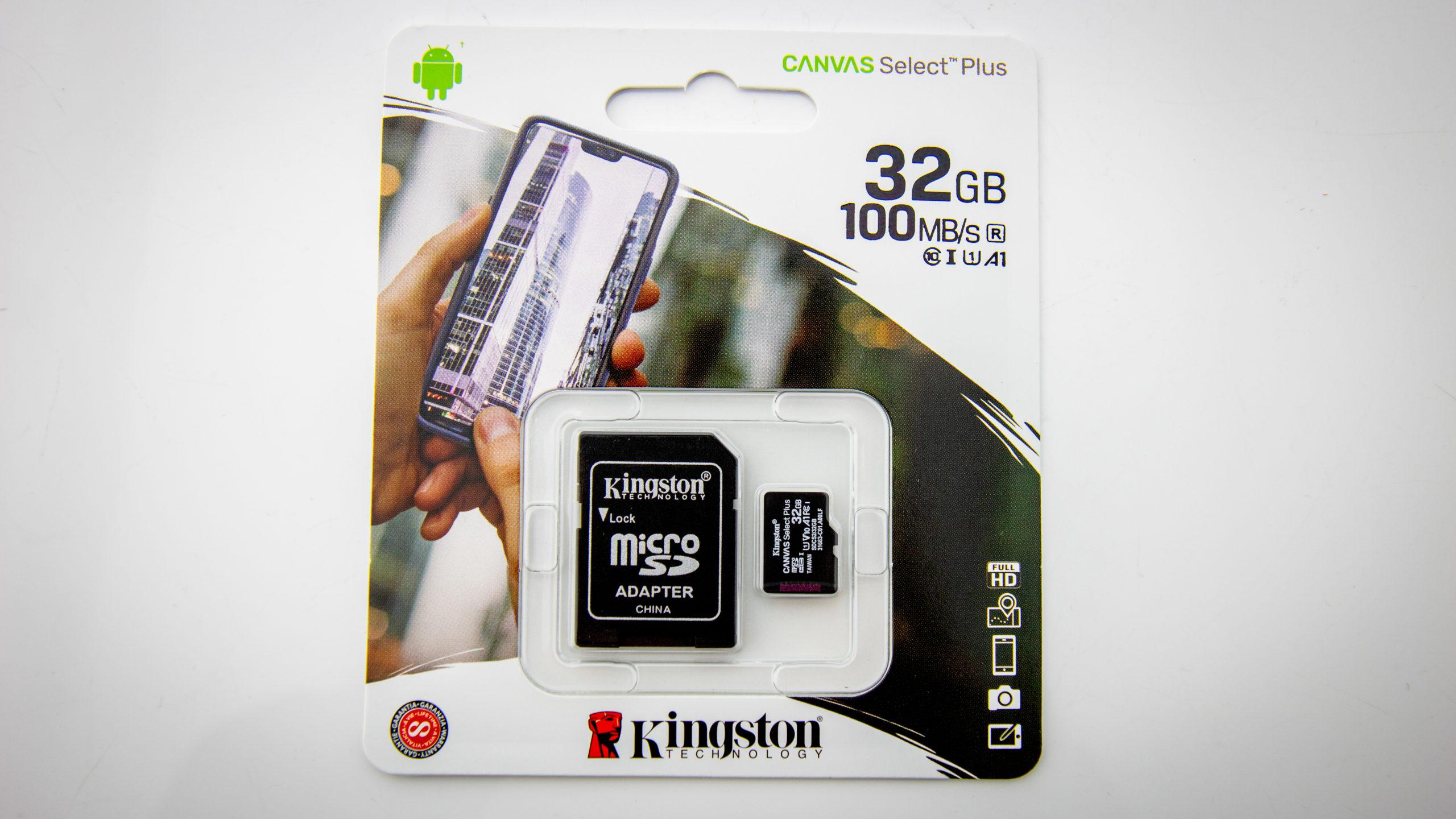
 LabQuest SD Card
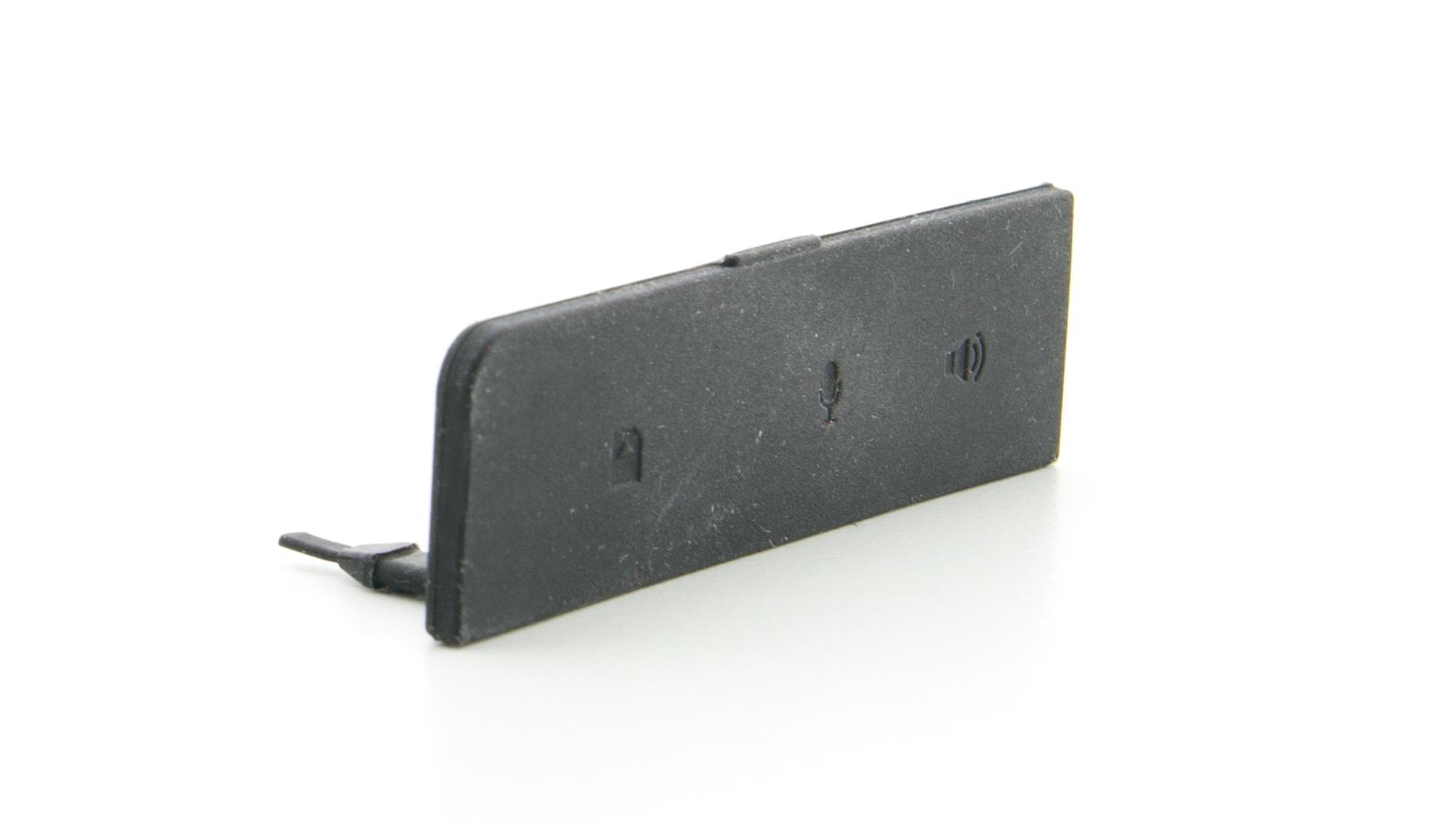 LabQuest 2 SD Card Slot and Audio Ports Cover (Set of 4)
- How do I use a specially prepared drive to recover a LabQuest 2 unit?
- Nov 27, 2017 ... If you need one, contact Vernier Technical Support and we will send one to you. To use the SD card 1. Turn LabQuest 2 off (remove the battery/AC ...
- https://www.vernier.com/til/3506
- LabQuest 2 Update FAQs
- Aug 8, 2022 ... Why do I have to put the update file in the root directory of my USB Drive or Micro SD card? In order for the update to start automatically, ...
- https://www.vernier.com/til/15625
- How do I save a LabQuest experiment file to a USB flash drive or SD ...
- Jun 9, 2011 ... Record experiment data, or choose Open from the File menu to load a previously-saved experiment. Insert the SD card (original LabQuest or ...
- https://www.vernier.com/til/2252
- How do I get my own labs on my LabQuest 2 or Original ...
- Nov 9, 2022 ... Close Word. Copying the Lab from the Computer to the LabQuest. Using a USB Flash Drive or Secure Digital (SD) Memory Card – Original LabQuest ...
- https://www.vernier.com/til/1703
- Can I make a template data-collection file for the LabQuest App?
- You may also choose to make manual or calculated columns. Do not collect data. Save the file to an SD card (original LabQuest or LabQuest 2 only) or USB Flash ...
- https://www.vernier.com/til/2939
- LabQuest 2.7 and 2.7.1 Release Notes – Technical Information Library
- Aug 24, 2016 ... ... SD card and cannot be saved to LabQuest internal memory ○ Updated Statistics calculation includes Δx, the horizontal width of the region ...
- https://www.vernier.com/til/3677
- What is the Print to File feature in LabQuest App?
- The Print to File feature, found in LabQuest App version 2.7 or newer, allows you to save a PDF print file to a USB flash drive or micro SD card for ...
- https://www.vernier.com/til/3666
- LabQuest App Sensor Setup doesn't list any channels
- Jun 27, 2018 ... You may want to download the update again to a different SD card (original LabQuest or LabQuest 2 only) or USB flash drive to ensure the update ...
- https://www.vernier.com/til/3338
- How do I transfer LabQuest App data to a spreadsheet?
- Feb 14, 2025 ... Insert an SD card or connect a USB Flash drive to your LabQuest. 2. In LabQuest App, choose Export from the File menu. 3. Select your media (SD ...
- https://www.vernier.com/til/2688
- Can I play audio files recorded with a LabQuest in Logger Pro?
- When you save a LabQuest audio clip, save the file to an attached SD card (original LabQuest or LabQuest 2 only) or USB flash drive. You may move this USB drive ...
- https://www.vernier.com/til/1801
- Why does the SD card icon still show in the original LabQuest File menu after the card was removed?
- This information pertains to the original LabQuest. If you have LabQuest 2, see this article. If you remove an SD card from the original LabQuest...
- https://www.vernier.com/til/1897/
- Original LabQuest Troubleshooting and FAQs (Full List)
- This information pertains to the original LabQuest. If you have LabQuest 2, see this article. If you have LabQuest 3, see this article. User manual:...
- https://www.vernier.com/til/1688/
- LabQuest 2 FAQs
- This information pertains to LabQuest 2. If you have a LabQuest 3, see this article. If you have an original LabQuest, see this article. The...
- https://www.vernier.com/til/2694/
- LabQuest 2 Release Notes
- This information pertains to LabQuest 2. If you have LabQuest 3, see this article. If you have an original LabQuest, see this article.
- https://www.vernier.com/til/2803/
- Updating LabQuest via an SD Card fails.
- This information pertains to the original LabQuest. If you have LabQuest 2, see this article. This is a known issue when updating to LabQuest version...
- https://www.vernier.com/til/2371/
- Can I connect a Vernier interface to an iPad with a USB adapter?
- It is not possible to connect one of our interfaces to an iPad with a USB adapter. The 30 pin and Lightning ports are heavily...
- https://www.vernier.com/til/3650/
- LabQuest 3 FAQs
- This information pertains to LabQuest 3. If you have a LabQuest 2, see this article. If you have an original LabQuest, see this article. User...
- https://www.vernier.com/til/8364/
SAVE/SHARE YOUR CART