
This information pertains to LabQuest 2 and LabQuest 3.
The original LabQuest does not support this functionality.
On a computer, phone or tablet
To set up email data, you will need to create a password that the LabQuest can use to access your Google or Yahoo mail.
In a Web Browser
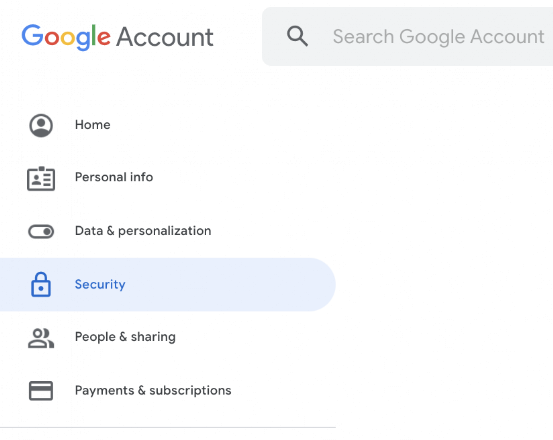
- Log in and go to the Manage your Google Account page and select Security.
- Scroll to locate the “Signing in to Google” section.
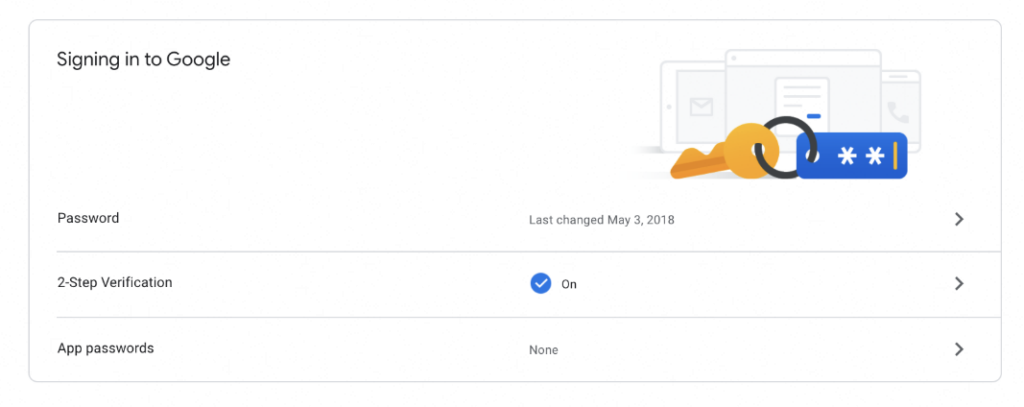
- Choose “App passwords”.
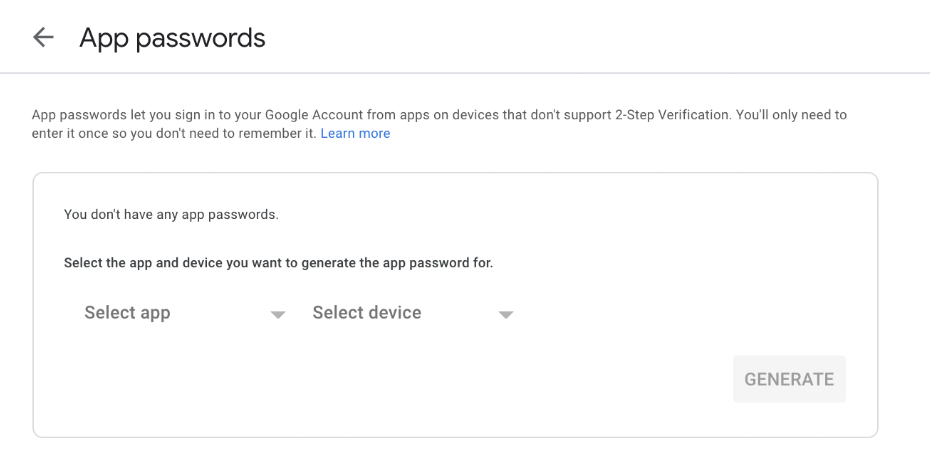
- Choose “Other (Custom name)” from the “Select app” dropdown options.
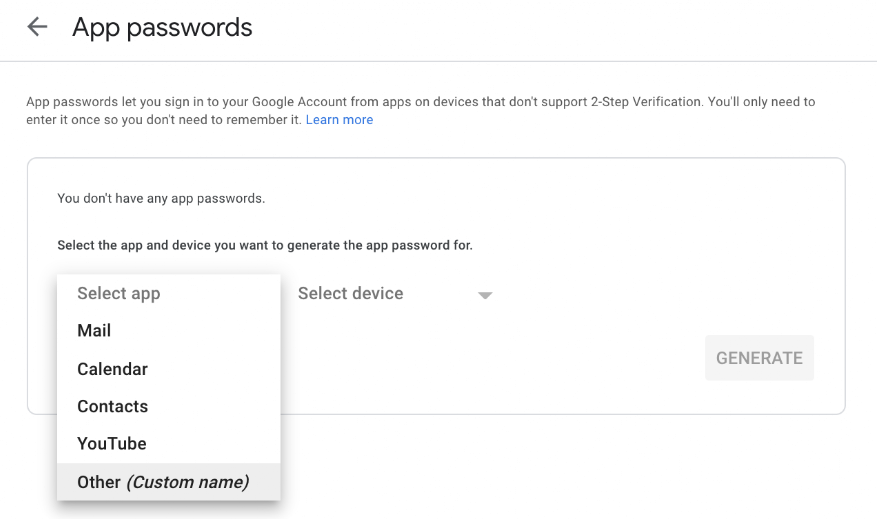
- Enter any name to help you know what this is used for (e.g., “my-lq3”).
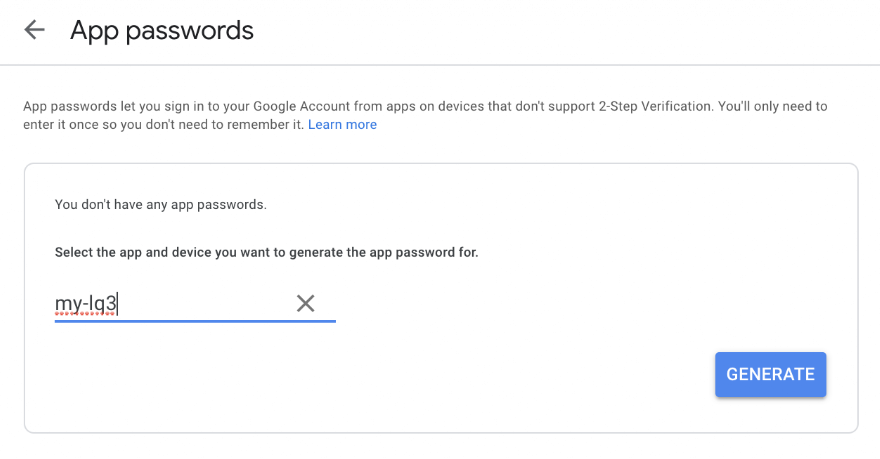
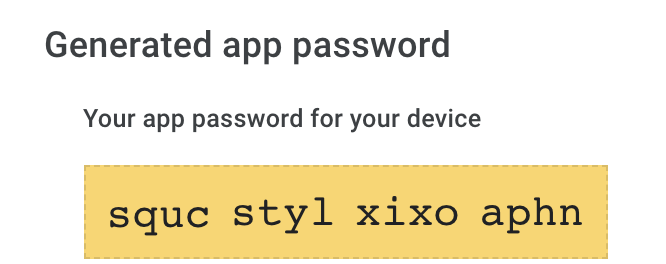
- Choose “Generate” and write down the resulting password. You you will need to enter it on your LabQuest.
- Click Done.
If you do not have two-factor authentication enabled on your Gmail account, you will need to enable “Less secure applications” access to use Gmail.
In a Web Browser
- Log in and go to the Manage your Google Account page and choose Security.
- Locate the “Less secure app access” section.
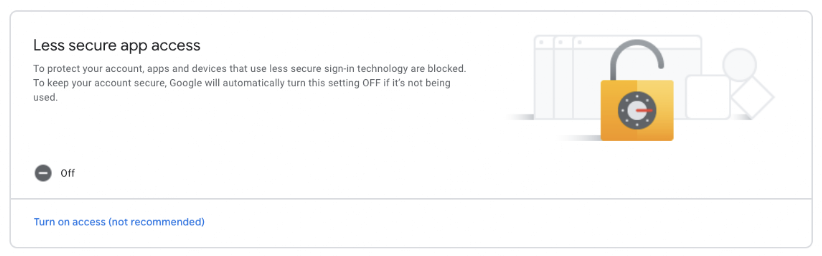
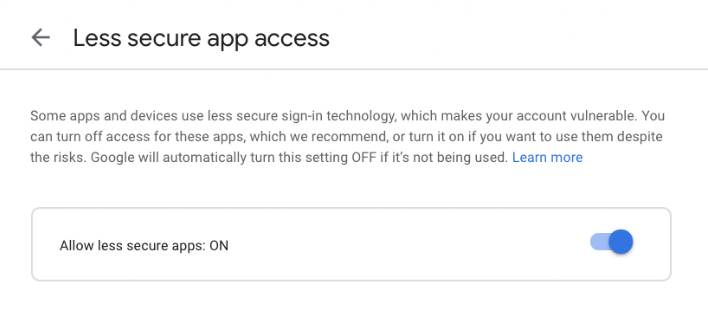
- Turn on the Less Secure App option.
In a Web Browser
- Log in and go to your Yahoo Account Info page and select Account Security.
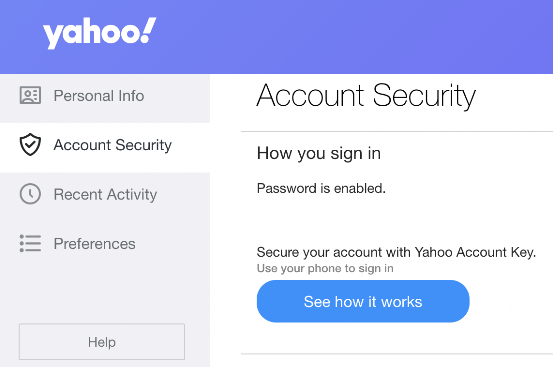
- Scroll to locate the “Generate app password” section.

- Choose “Generate app password”.
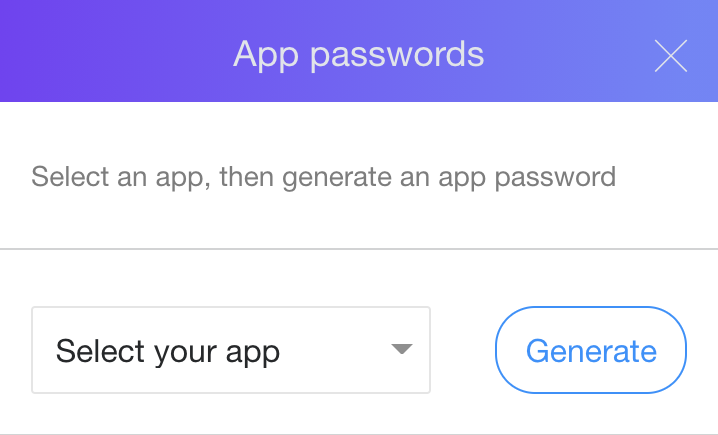
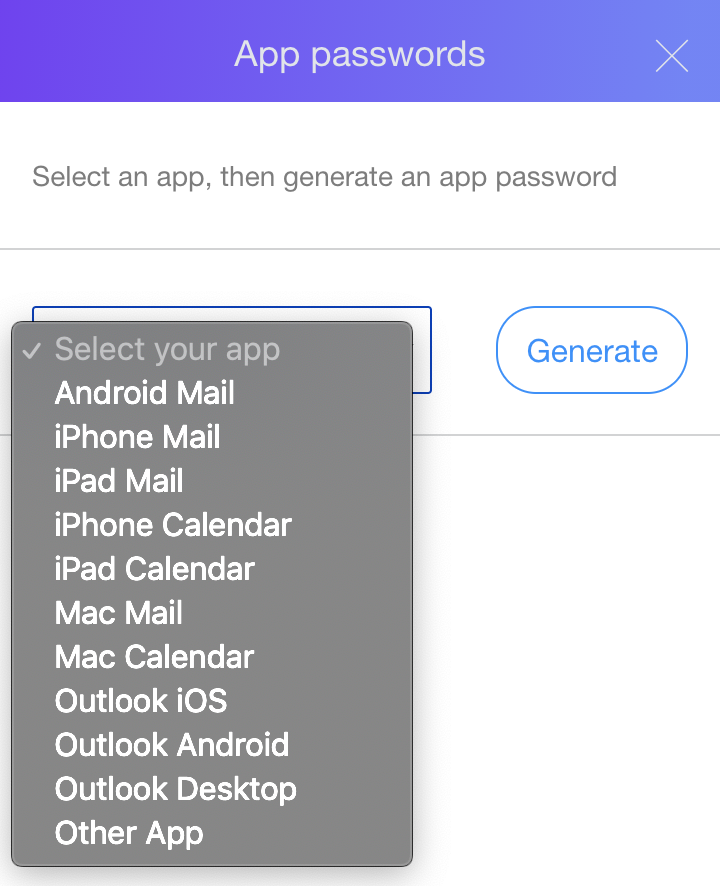
- Choose “Other App” from the “Select your app” drop down.
- Enter any name to help you know what this is used for, such as “my-lq3”.
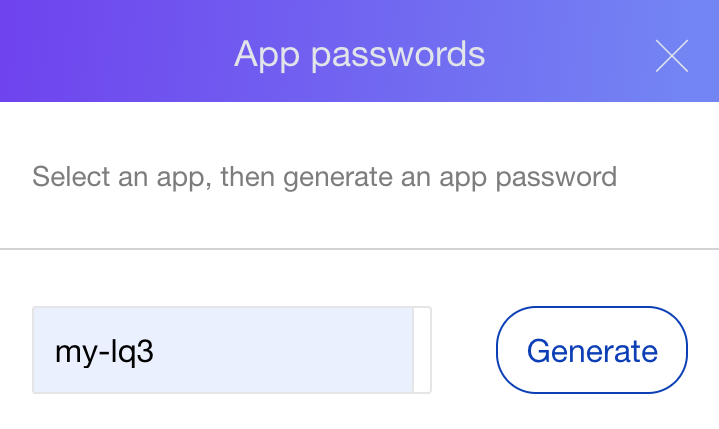
- Choose “Generate” and write down the resulting password. You will need to enter it on your LabQuest.
- Click Done.
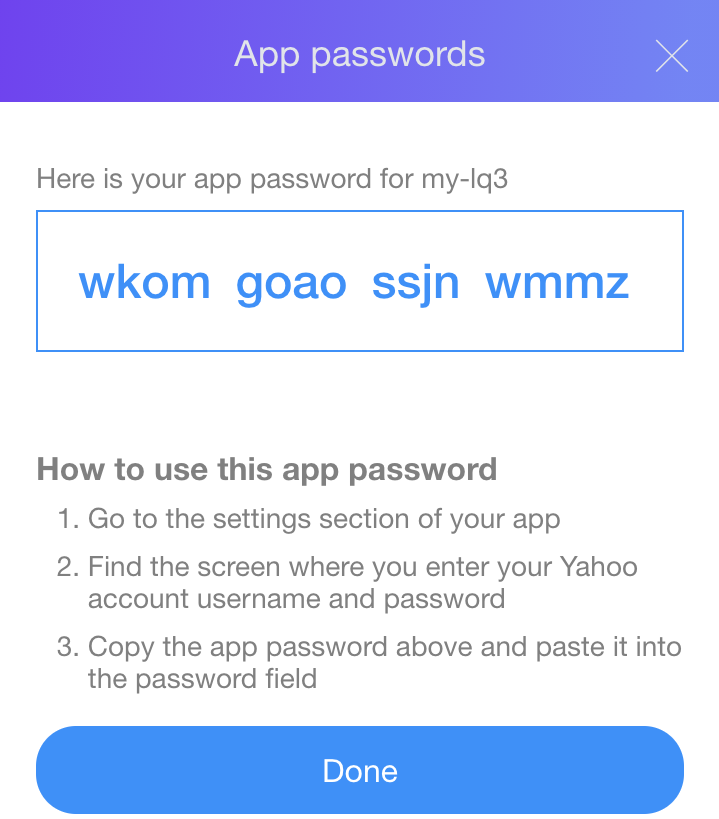
On Your LabQuest
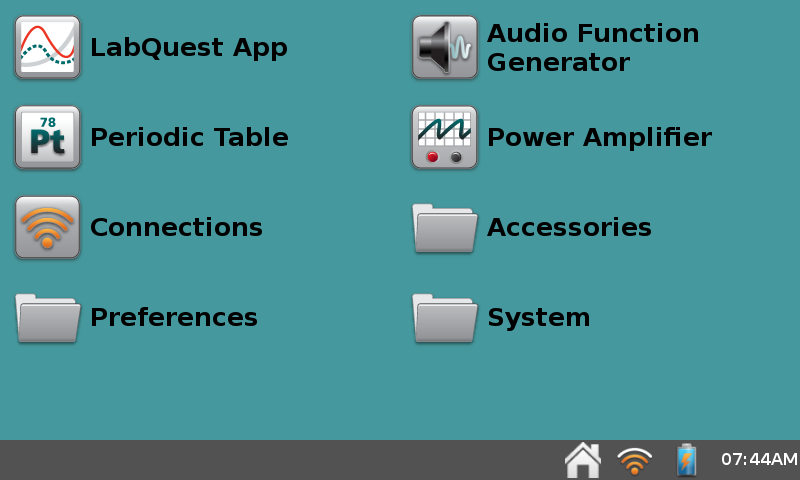
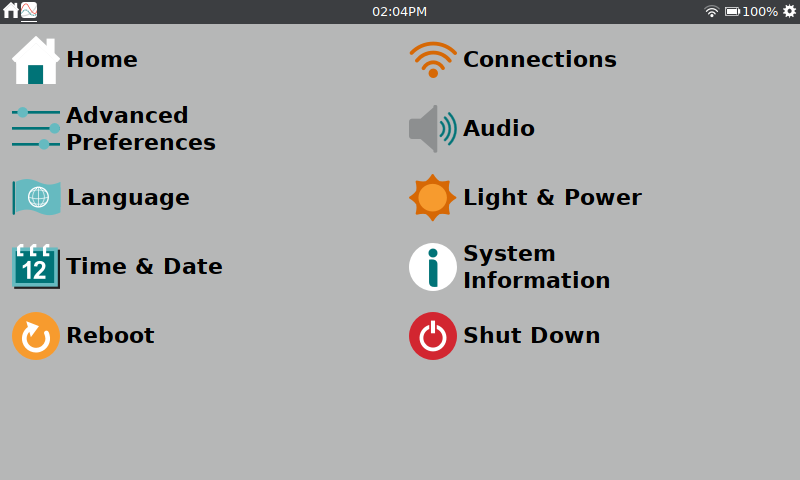
- Launch the Connections App.
● LabQuest 2: From the Home screen, tap Connections.
● LabQuest 3: From the Settings screen, tap Connections.
- Ensure your LabQuest is connected to a network with internet access.
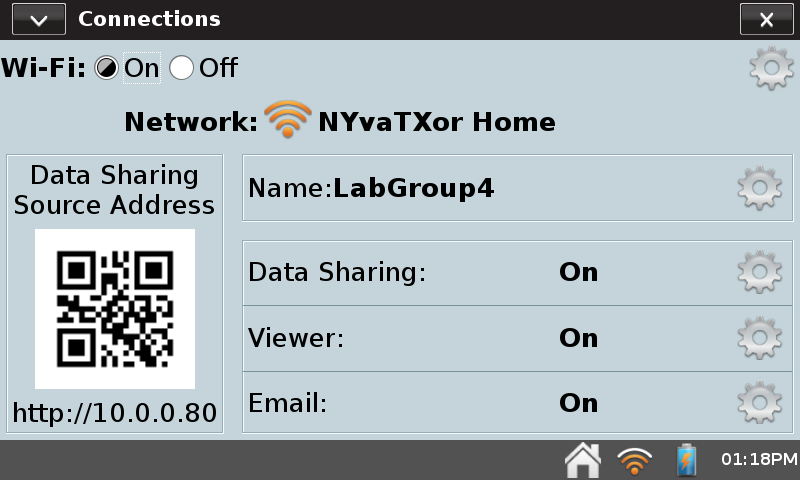
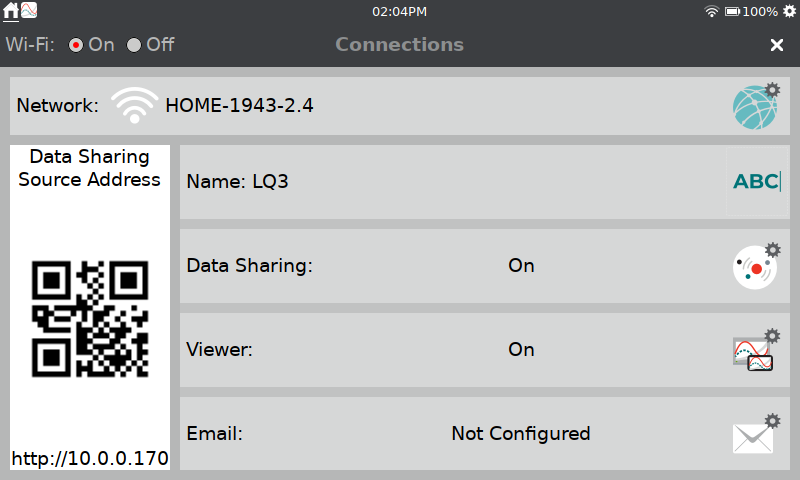
- Tap the Email gear icon (
 — LabQuest 2;
  — LabQuest 3).
- Turn Email On, then choose Custom.
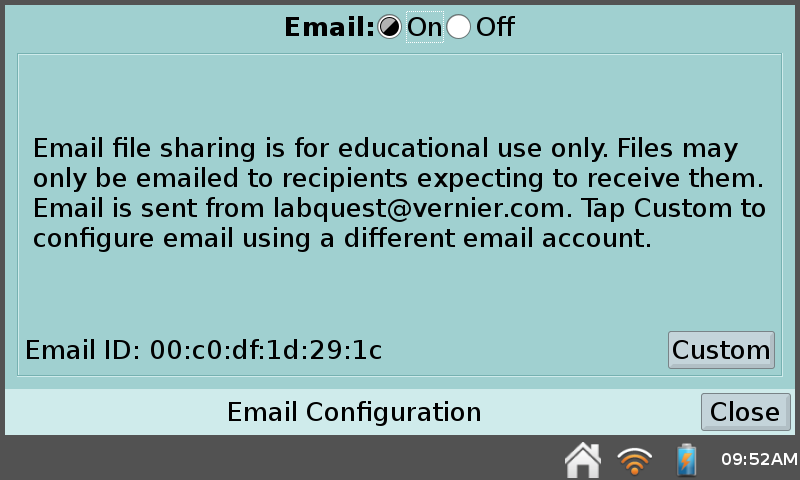
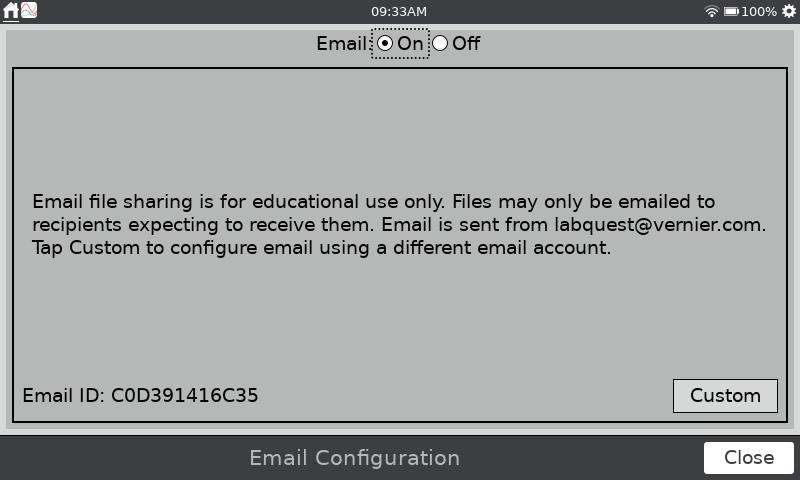
- Enter your Yahoo or Gmail address, then press Done.
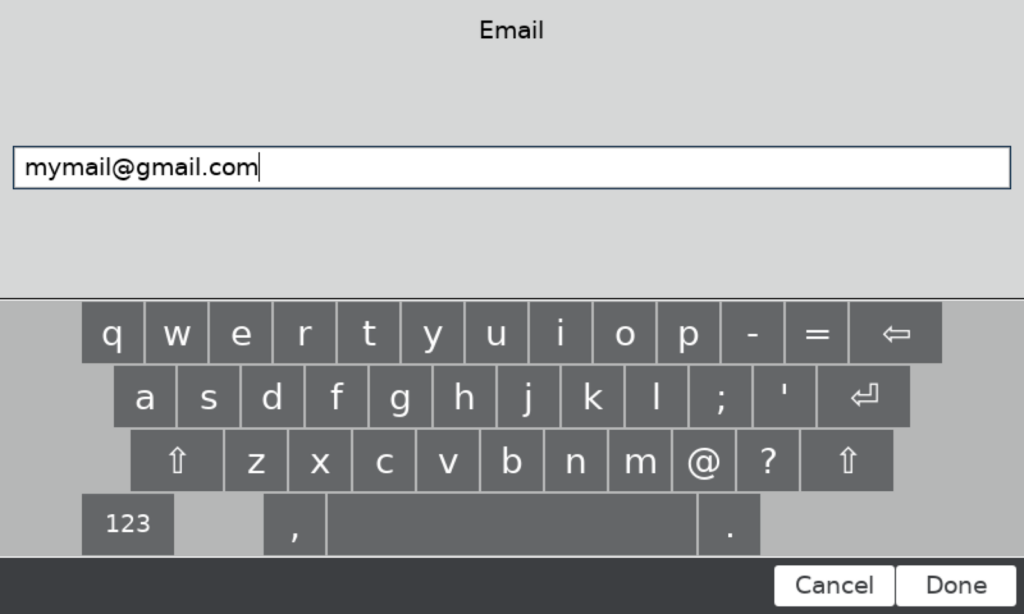
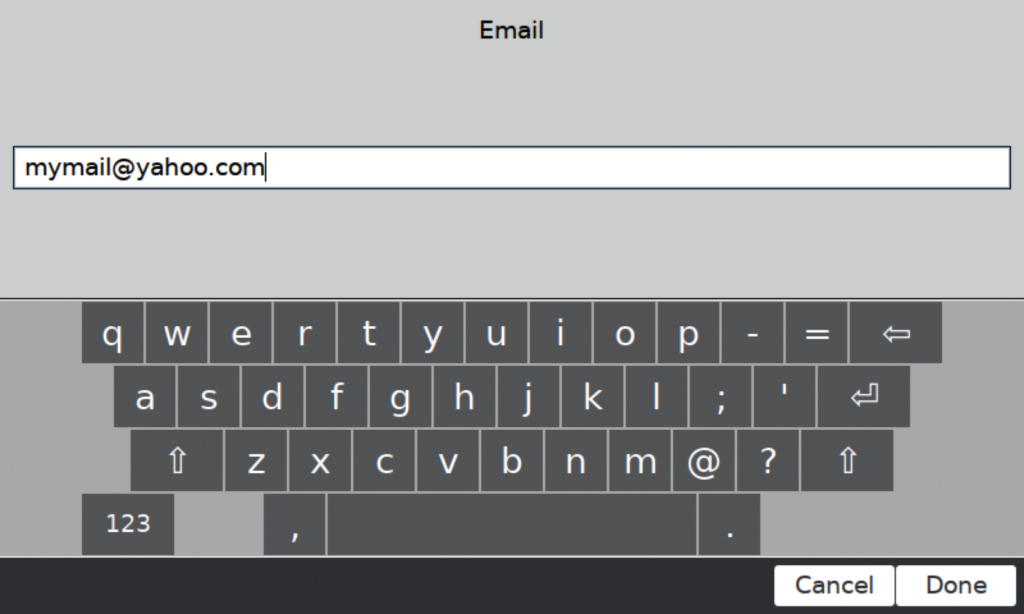
- Verify you typed the email correctly, then
● For Gmail: Select the “I want to configure it manually instead” option, then tap Next.
● For Yahoo Mail: tap Next.
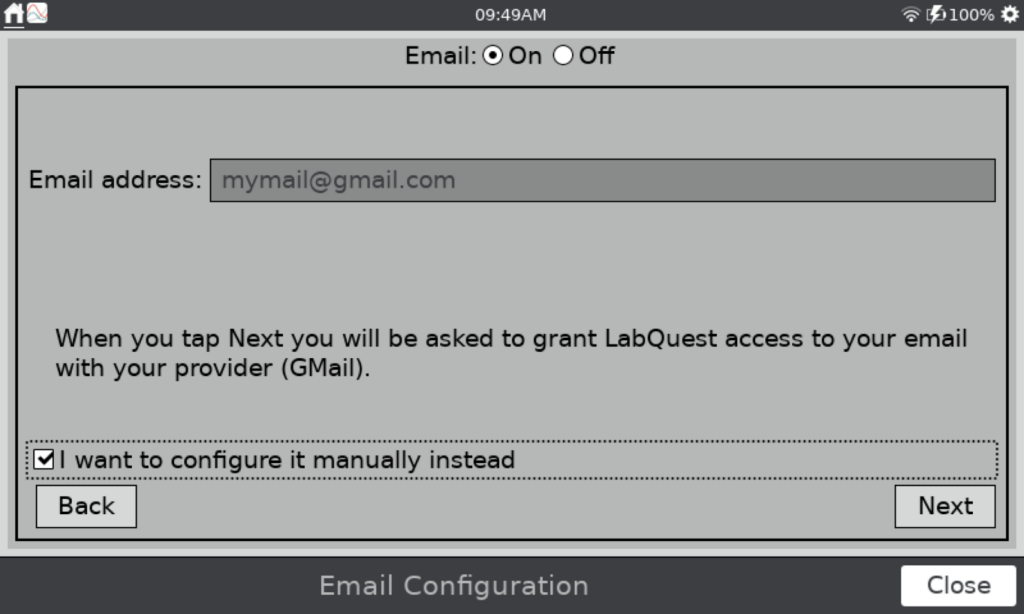
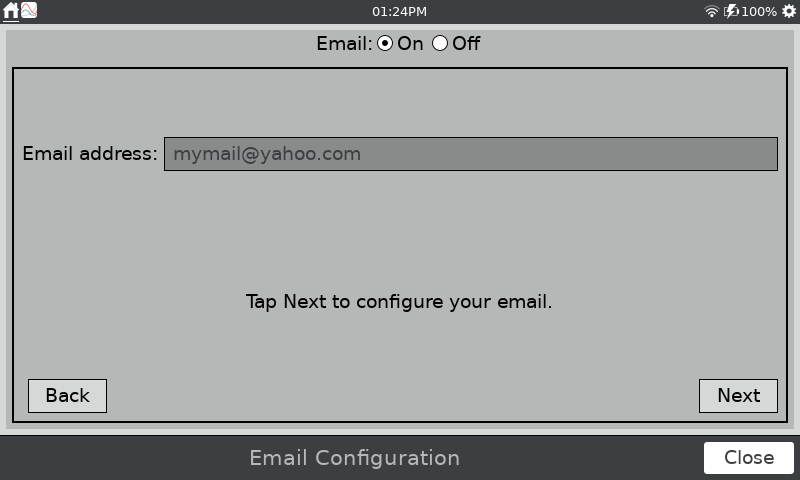
- Enter the password that you generated for you Gmail or Yahoo mail account. The default values for the other fields should work as shown.
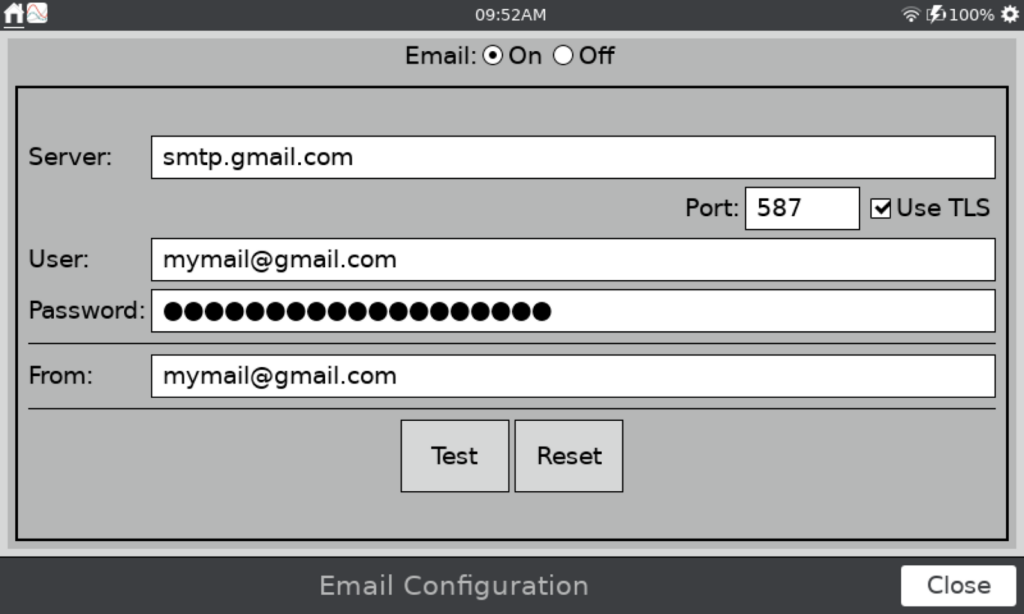
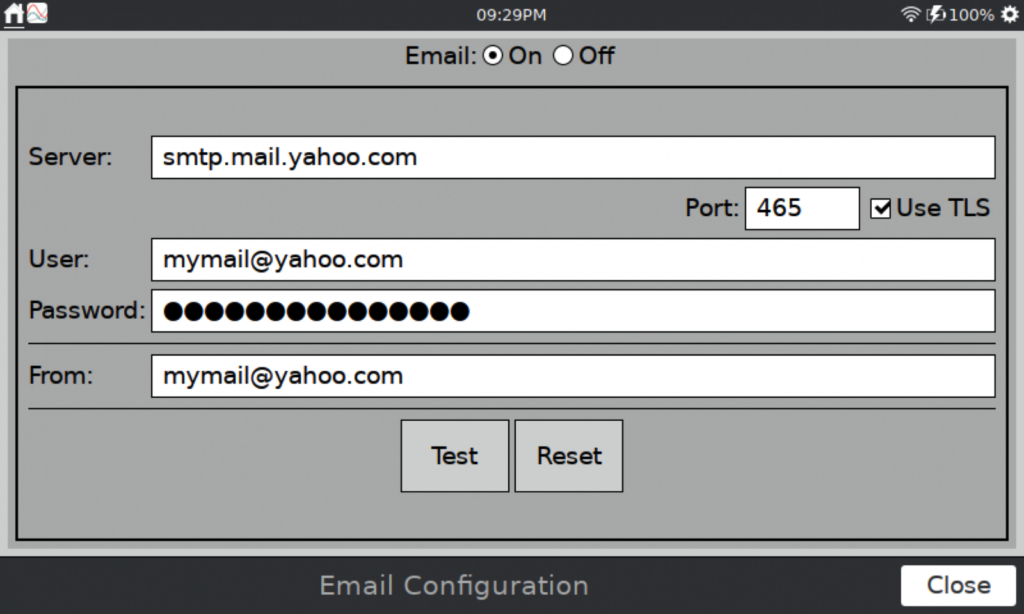
- Press the Test button. An email from the LabQuest will be sent to your email address to confirm the setup is complete.