
This information pertains to LabQuest 2 and LabQuest 3.
The original LabQuest does not support this functionality.
This functionality is available in LabQuest 3 version 3.0.3 and newer and LabQuest 2 version 2.7 and newer. To update your to the latest version, see
● LabQuest 3: https://www.vernier.com/downloads/labquest-3-updates/
● LabQuest 2: https://www.vernier.com/downloads/labquest-2-updates/
Each LabQuest has a unique e-mail ID that is used in the email signature of a sending email. You can determine the email ID for a particular LabQuest from the following LabQuest screens:
LabQuest 3
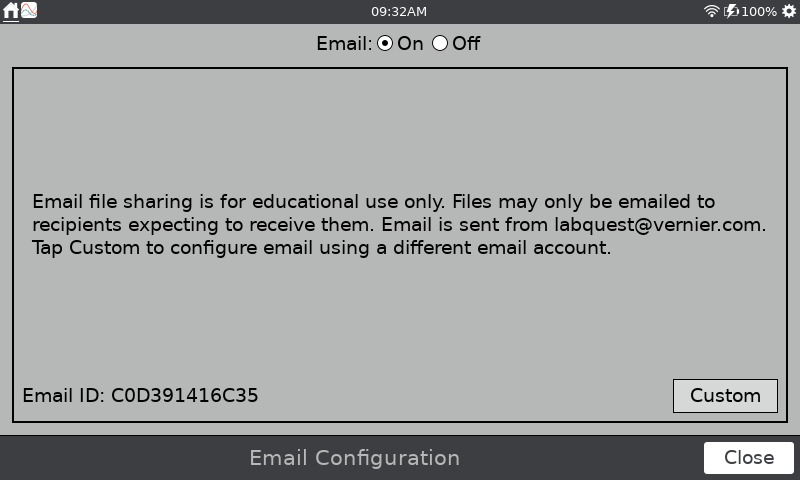
| Email Setup Screen in the Connections App 1. Launch the Connections app,  , from the Settings screen. , from the Settings screen. 2. Tap the Email settings icon,  . .
The Email ID is displayed in the lower left corner of the screen. |
 |
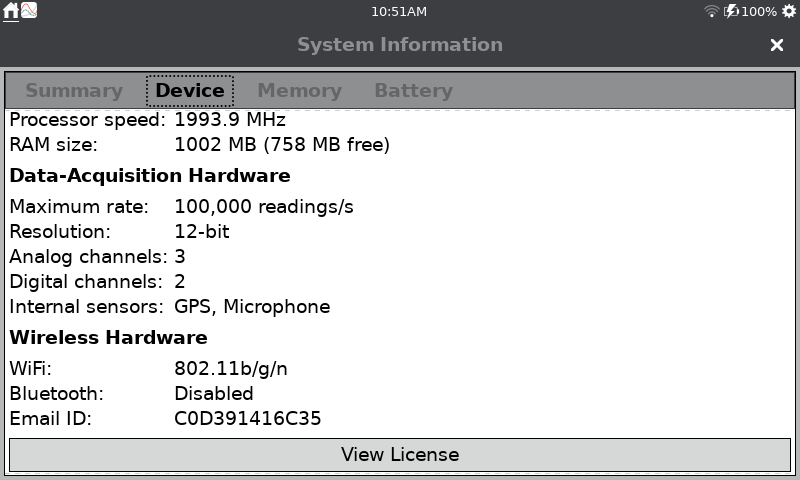
| Device tab in the System Information App 1. Launch the System Information app,  , from the Settings Screen. , from the Settings Screen.2. Tap the Device tab. 3. Scroll to the bottom of the screen. The Email ID is displayed in the Wireless Hardware section. |
 |
LabQuest 2
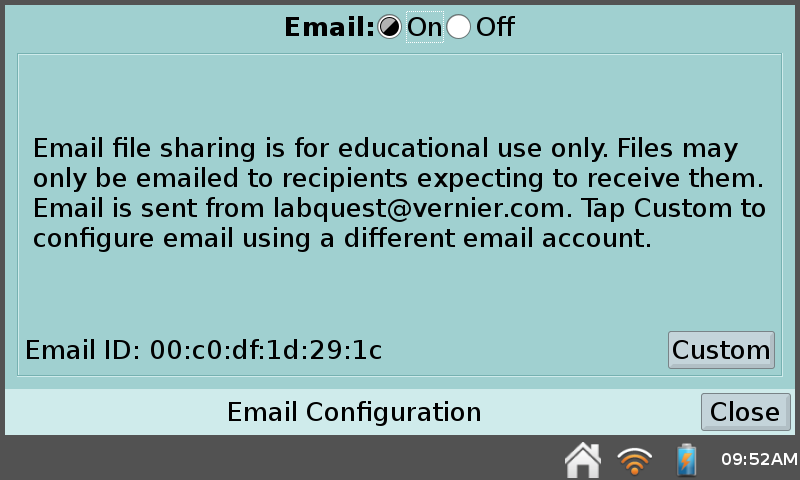
| Email Setup Screen in the Connections App 1. Launch the Connections app, , from the Home screen. 2. Tap the Email settings gear. The Email ID is displayed in the lower left corner of the screen. |
 |