
What You Need
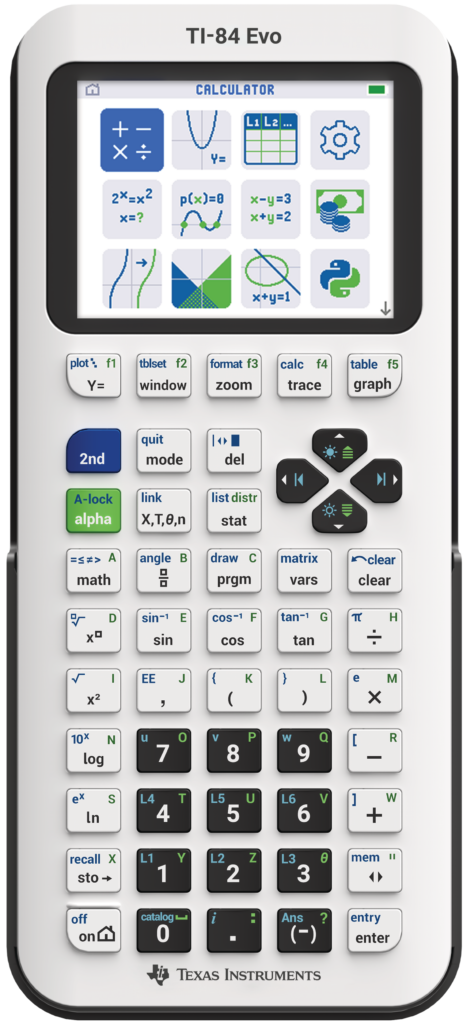
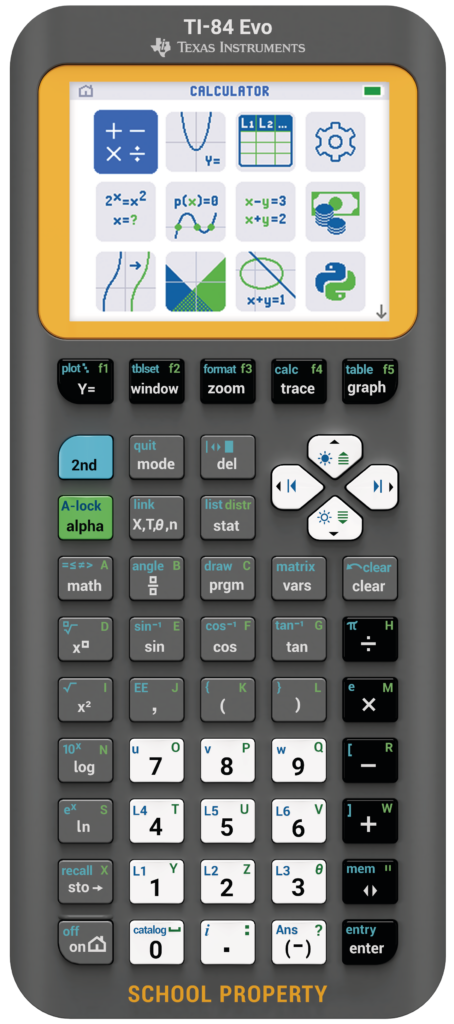
Only a TI-84 Evo Calculator (
Operating system updates are done using TI-Connect Evo, a free web app accessed using a Chrome browser.
The TI-84 Evo Online Calculator app does not support sensor data collection.
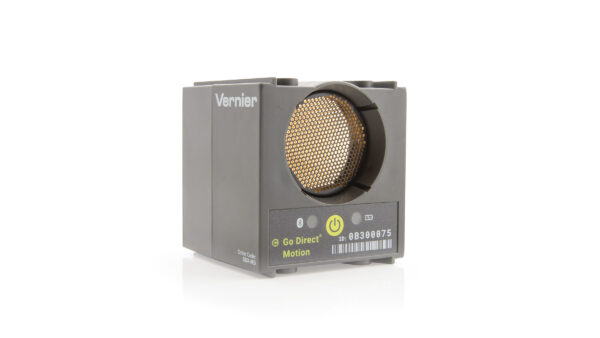
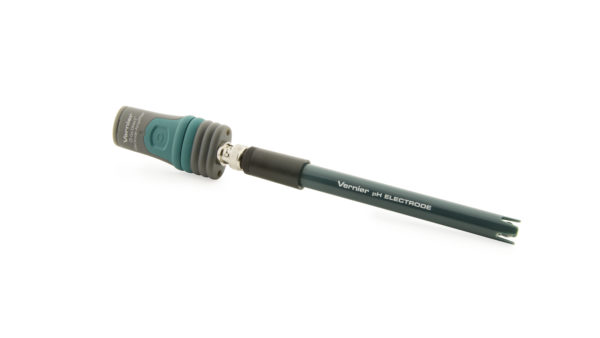
Fully charge sensors before collecting data for best results.
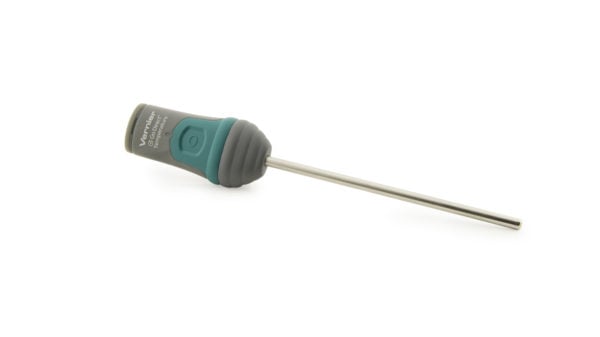
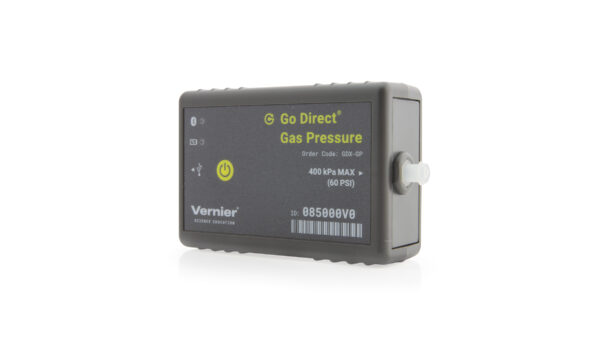
Any Go Direct Sensor
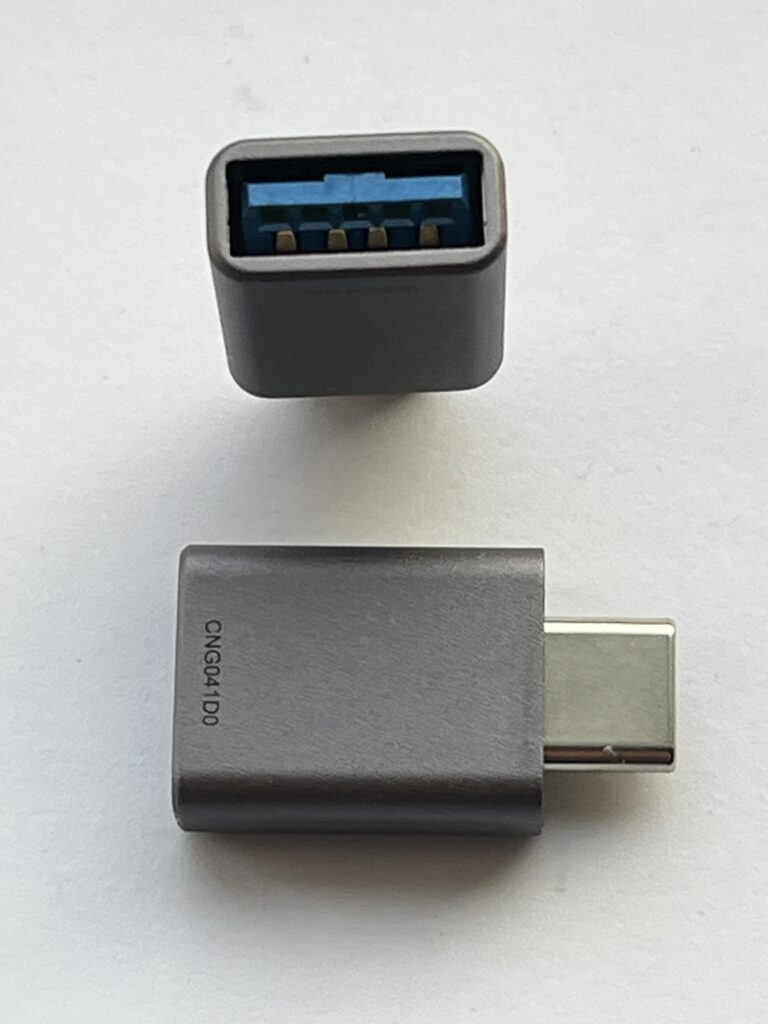
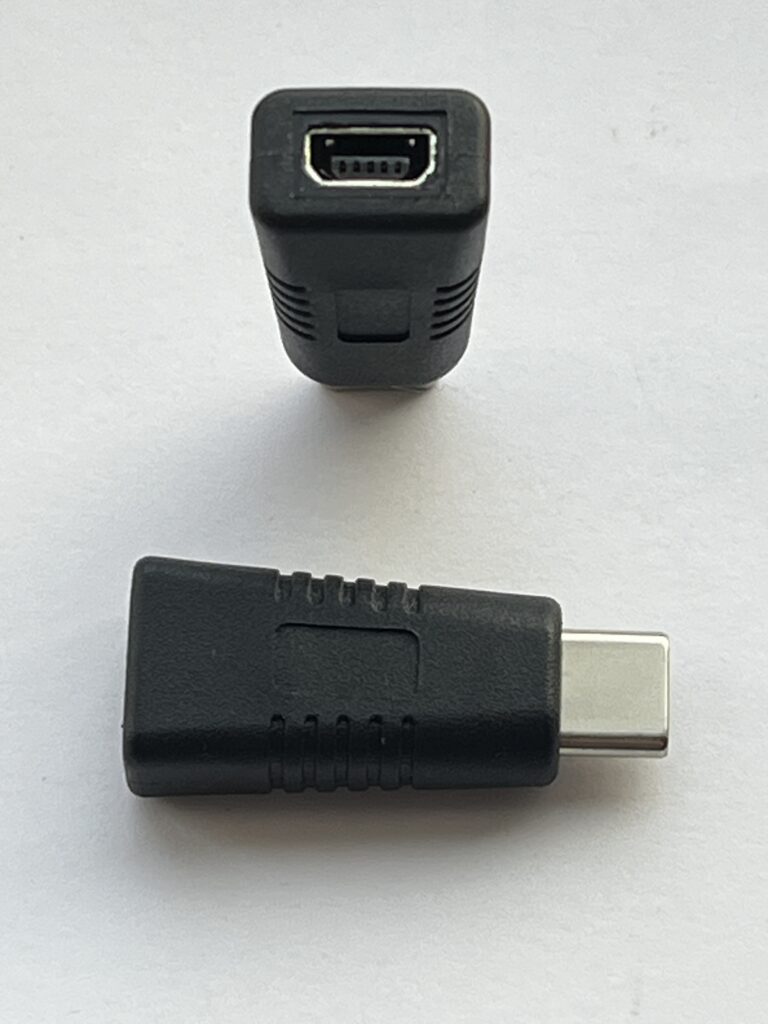
Use a USB-A to USB-C adapter along with the sensor’s charging cable (included with the sensor) to connect the Go Direct sensor to the TI-84 Evo.
- Adapters are not sold by Vernier or TI. (We tested with an adapter from ANKER.)
- This adapter and cable combination will allow the calculator battery to charge the sensor.
➕
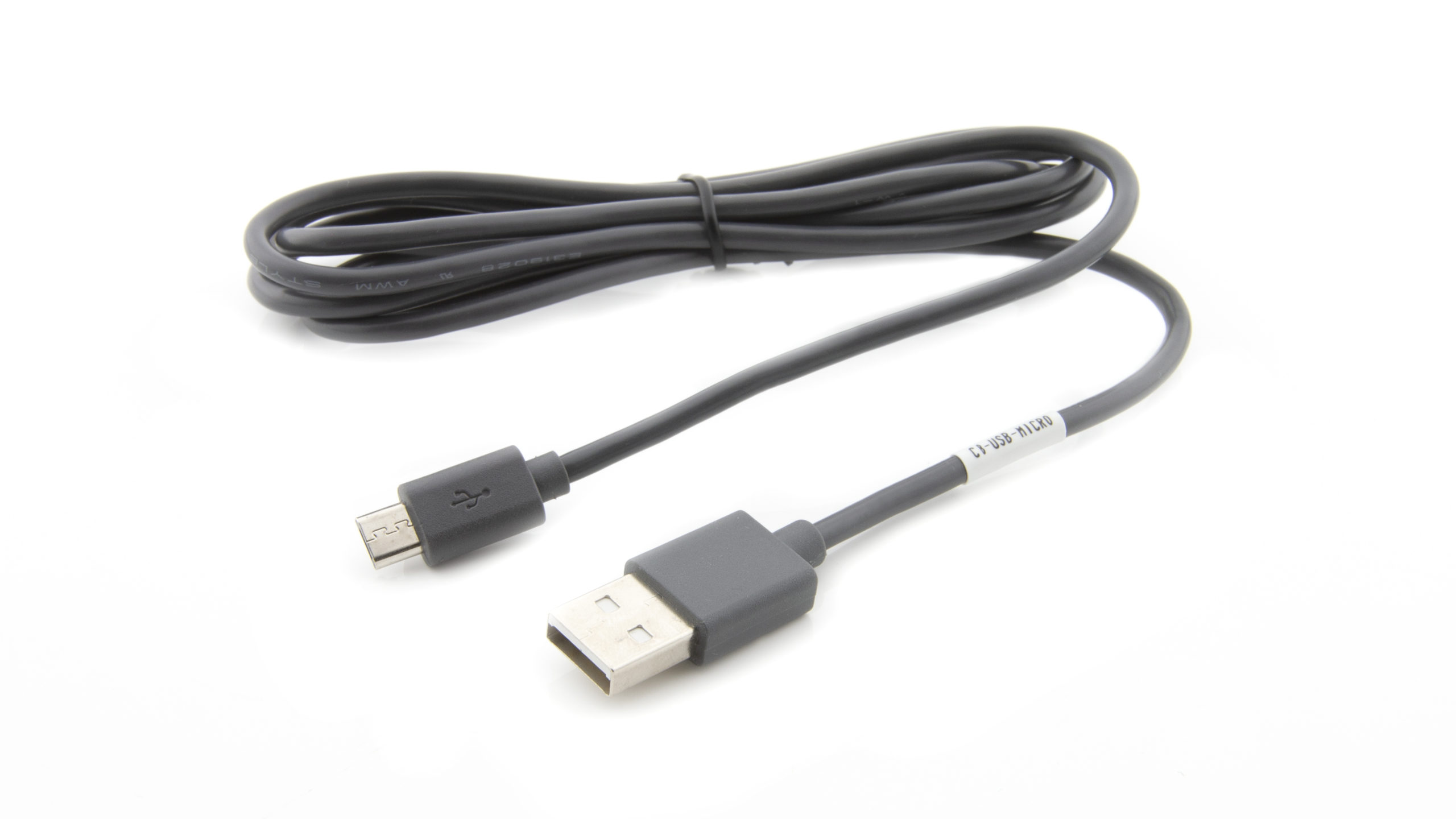
Sensors with a Micro USB Charging Port
Option 1
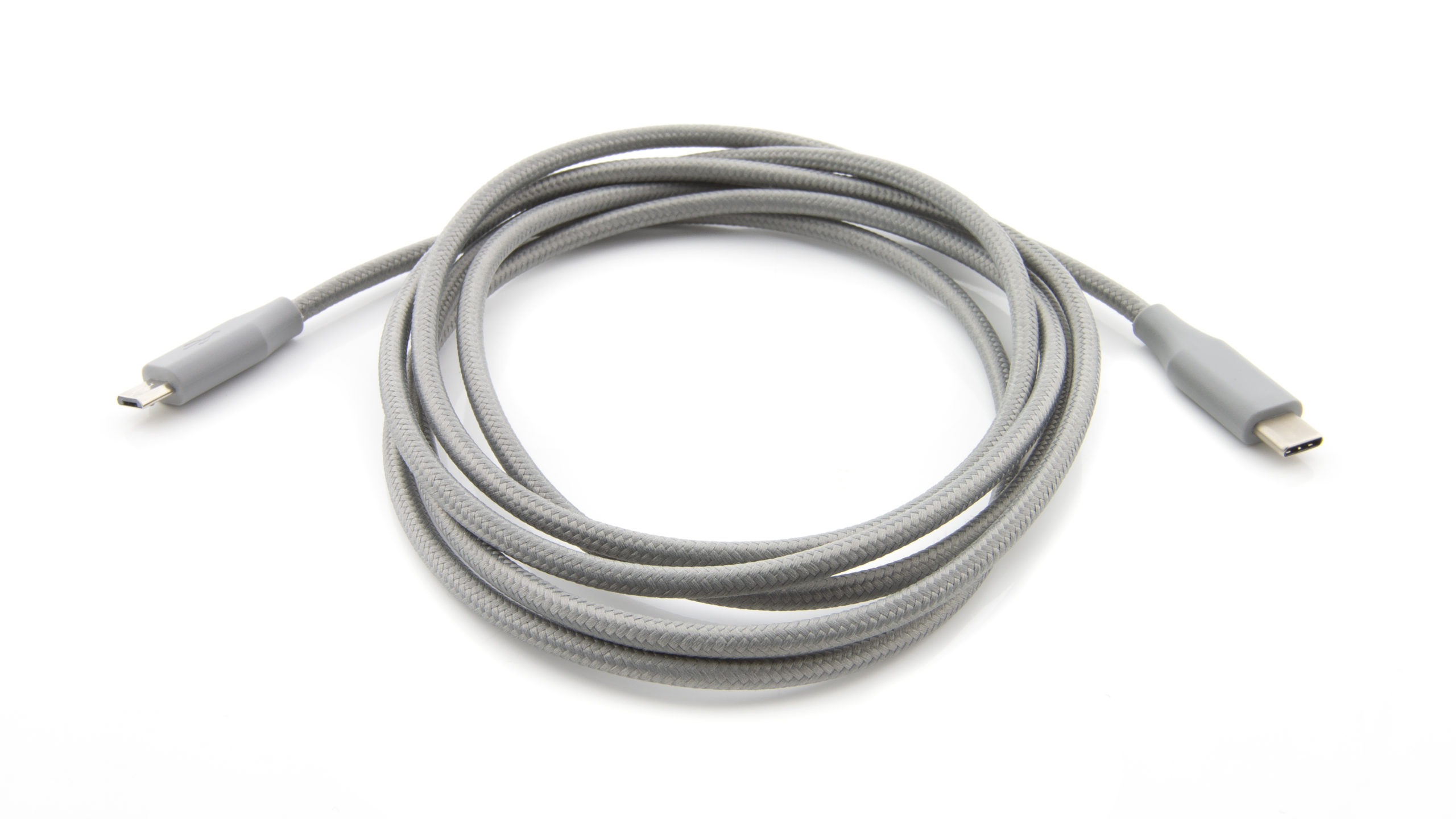
Use a Micro USB to USB-C Cable (
- The cable is available from Vernier. Cables not sold by Vernier must support data transfer as well as charging.
- This cable will allow the calculator battery to charge the sensor.
Option 2
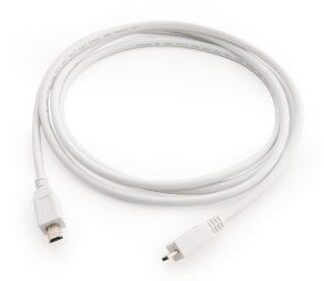
Use a TI Calculator Data-Only Go Direct Sensor Cable (
- The data-only sensor cable is available from Vernier.
- The USB-Mini to USB-C cable adapter is available from Texas Instruments.
- This cable will not allow the calculator battery to charge the sensor.
➕
Sensors with a USB-C Charging Port
Use a unit-to-unit USB-C cable to connect the Go Direct sensor to the TI-84 Evo.
- The cable is available from Texas Instruments. Cables not sold by TI must support data transfer as well as charging.
- This cable will allow the calculator battery to charge the sensor.
For information on which charging port a particular Go Direct sensor has, see Which Go Direct sensors have a USB-C port?
