
Go Direct® Materials Test Frame User Manual
Order Code: GDX-MTF
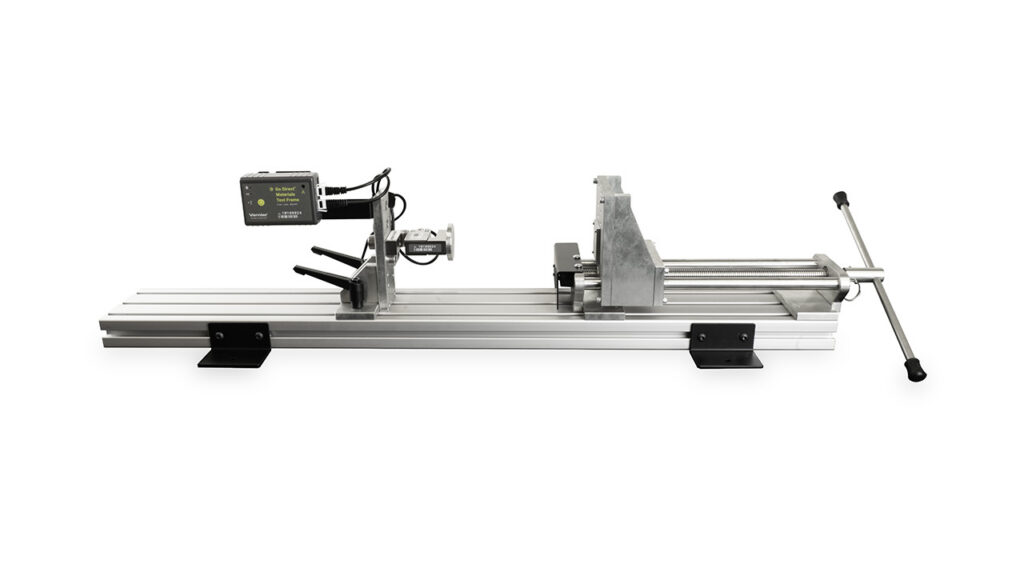
The Go Direct Materials Test Frame is an adaptive platform for materials testing. It has applications for material science, engineering, and biomechanics.
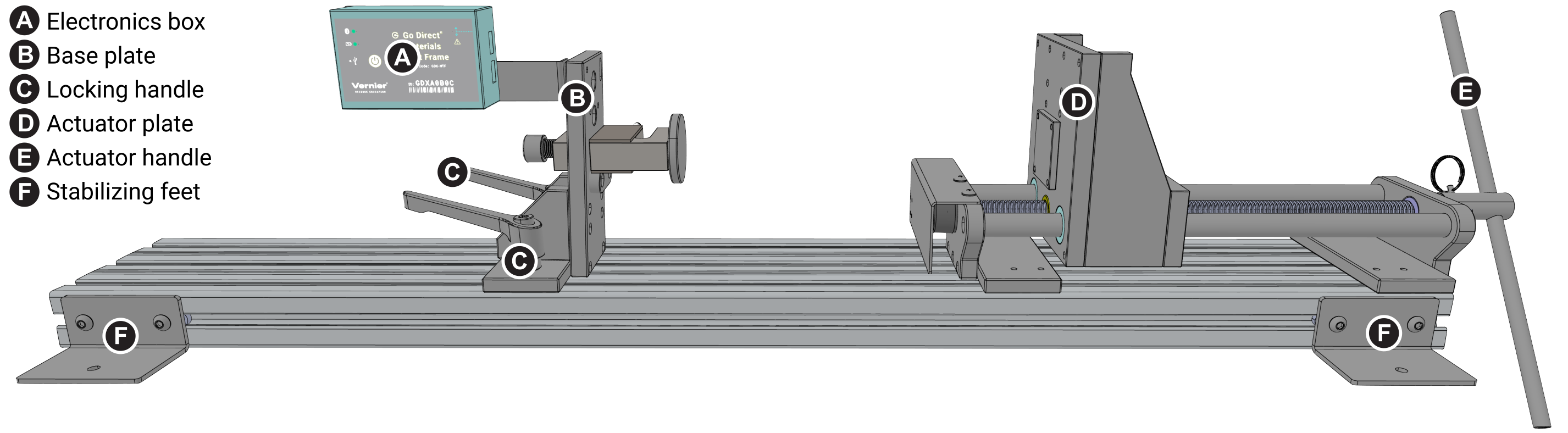
The platform comes with standard fixtures for compression and tension testing and can accommodate a variety of samples. The load cell, rated for +/- 4000 N, is mounted on a base plate. The optical encoder, used to measure displacement, measures degrees of rotations of a lead screw that moves the actuator plate. Using both sensors, you can record maximum loads, as well as load versus displacement characteristics.
The base plate is secured in place with locking handles. The actuator plate has a maximum travel of 23 cm. The total length of the base is 91 cm, and when extended fully, has 68 cm between the load cell and the actuator plate. The base plate is secured in place with two adjustable locking handles.
The Test Frame comes equipped with two fixtures - a set of platens for compression testing and a set of grips for tension. The actuator plate has a matrix of holes to allow for fixturing to be mounted at various heights, matching similar mounting locations for the load cell on the base plate.
Note: Vernier products are designed for educational use. Our products are not designed nor are they recommended for any industrial, medical, or commercial process such as life support, patient diagnosis, control of a manufacturing process, or industrial testing of any kind.
What's Included
- Go Direct Materials Test frame with force and displacement sensors
- handle with post connector
- 4 stabilizing feet
- electronics box with mounting bracket and cable management
- USB-C to USB-A Cable
- compression platens
- tension grips
- 5/32” Hex wrench
- 3/8” Hex wrench
- spring (nominally 284 N/mm)
Compatible Software
Choose a platform below to see its compatibility requirements.LabQuest
Interface LabQuest App LabQuest 3 Full support LabQuest 2 Full support 1 LabQuest Incompatible Compatibility Notes
Computers
Software Interface Graphical Analysis Graphical Analysis (Web App) No interface required Full support Full support LabQuest 3 Full support 1 Incompatible LabQuest 2 Full support 1 2 Incompatible Compatibility Notes
Chromebook
Software Interface Graphical Analysis (Web App) No interface required Full support iOS
Software Interface Graphical Analysis Graphical Analysis GW No interface required Full support Incompatible LabQuest 3 Full support Full support 1 LabQuest 2 Full support 2 Full support 1 2 Compatibility Notes
Android
Software Interface Graphical Analysis Graphical Analysis GW No interface required Full support Incompatible LabQuest 3 Full support Full support 1 LabQuest 2 Full support 2 Full support 1 2 Compatibility Notes
Python
Software Interface Python No interface required Full support Javascript
Software Interface Javascript No interface required Full support LabVIEW
Software Interface NI LabVIEW No interface required Full support
See www.vernier.com/manuals/gdx-mtf for a list of software compatible with the
Go Direct Materials Test Frame.
Assemby Instructions
For detailed assembly instructions, see www.vernier.com/gdx-mtf_assembly
Quick Start: Vernier Graphical Analysis® and Bluetooth®
- Charge your sensor for at least 8 hours before first use.
- Turn on your sensor. The LED will blink red.
- Launch Graphical Analysis, then click Sensor Data Collection.
- Select your sensor from the list. The sensor ID is located on the sensor label near the bar code. Note: If you don’t see a list of available sensors, click WIRELESS. After selecting your sensor, click Pair.
- The active channel is listed in the Connected Devices Sensor Channels list. To change channels, select the check box next to the Sensor Channel(s) you would like to activate.
- Click DONE. You are now ready to collect data.
Using other Vernier data-collection apps or connecting via USB?
Visit www.vernier.com/start-go-direct
Note: This sensor also works with LabQuest 2 and LabQuest 3; it does not work with the original LabQuest.
Charging the Sensor
Connect the Go Direct Materials Test Frame to the included Micro USB Cable and any USB charging device for eight hours. NOTE: the electronics box can be removed from the Test Frame to facilitate charging.
You can also charge Go Direct Materials Test Frame using our Go Direct Charge Station, sold separately (order code: GDX-CRG)
| Charging |
The LED next to the battery icon is solid orange while the sensor is charging. |
| Fully charged |
The LED next to the battery icon is solid green when the sensor is fully charged. |
Powering the Sensor
| Turning on the sensor |
Press the power button once. The Red LED indicator next to the Bluetooth icon flashes when unit is on. |
| Putting the sensor in sleep mode |
Press and hold the power button for more than three seconds to put into sleep mode. The Red LED indicator next to Bluetooth icon stops flashing when sleeping. |
Connecting the Sensor
See the following link for up-to-date connection information:
Connecting via Bluetooth
| Ready to connect | The LED next to the Bluetooth icon flashes red when the sensor is awake and ready to connect. |
| Connected | The LED next to the Bluetooth icon flashes green when the sensor is connected via Bluetooth. |
Connecting via USB
|
Connected and charging |
The LED next to the battery icon is solid orange when the sensor is connected to Graphical Analysis via USB and the unit is charging. The LED next to Bluetooth is off. |
|
Connected, fully charged |
The LED next to the battery icon is solid green when the sensor is connected to Graphical Analysis via USB and fully charged. The LED next to the Bluetooth icon is off. |
|
Charging via USB, connected via Bluetooth |
The LED next to the battery icon is solid orange when the sensor is connected to a charger via USB and the unit is charging. The LED next to the Bluetooth icon flashes green when the sensor is connected via Bluetooth. |
Identifying the Sensor
To identify which sensor is connected to Graphical Analysis, open Sensor Information and click Identify. The Bluetooth LED on the connected sensor will flash red and green.
Using the Product
Position the Go Direct Materials Test Frame so that the handle can be rotated with adequate clearance from the supporting surface. We recommend securing the unit to the lab bench using clamps or bolting the unit to the table. Attaching the stabilizing feet to the base will add significant stability.
Connecting the material to be tested securely to the device is critical to the safe and proper use of the Go Direct Materials Test Frame. The device comes with a set of tension grips and a set of flat compression platens for this purpose.
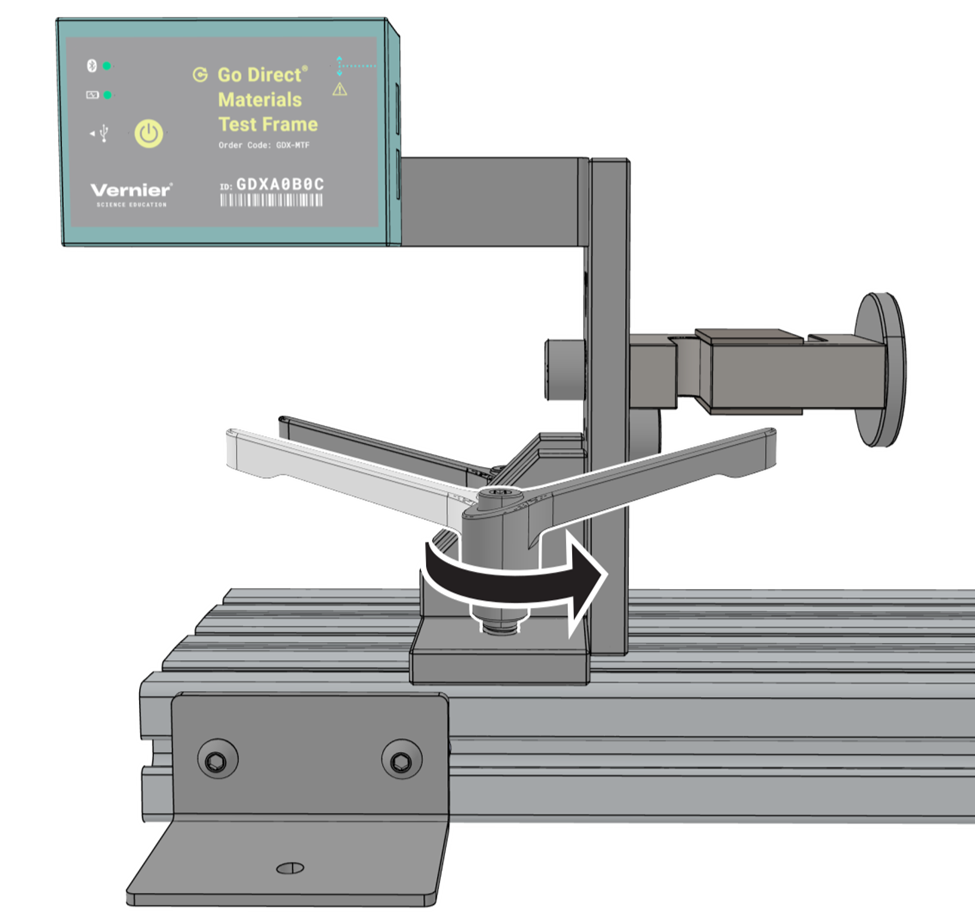
Moving the Base Plate
The base plate can be moved along the track to accommodate a large range of specimen sizes. There are two locking handles that are used to secure the base plate to the aluminum track.
Mounting Fixtures
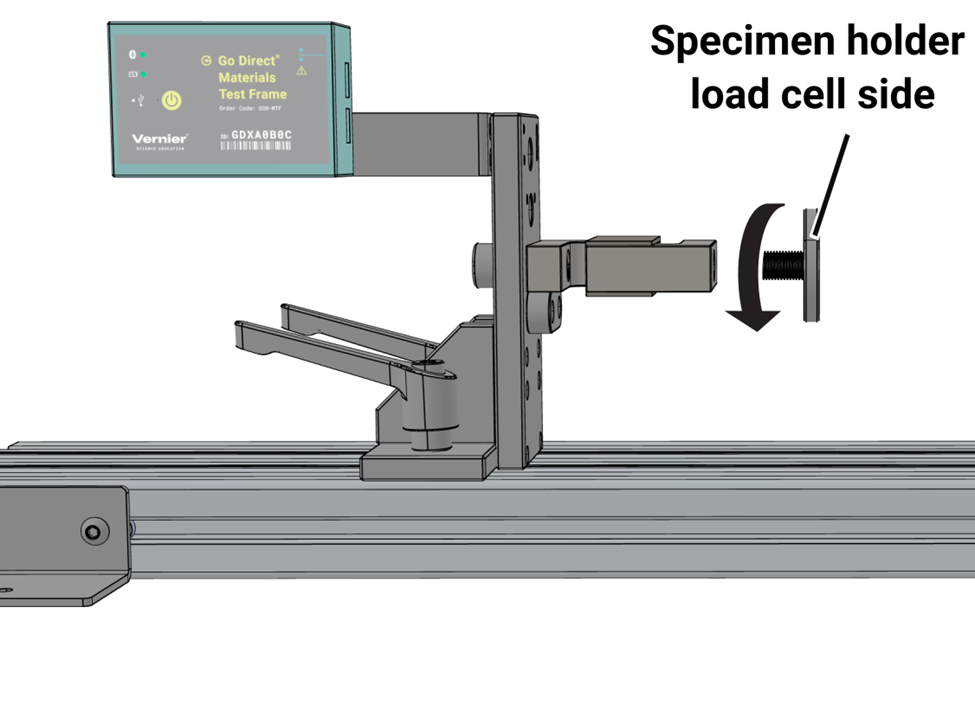
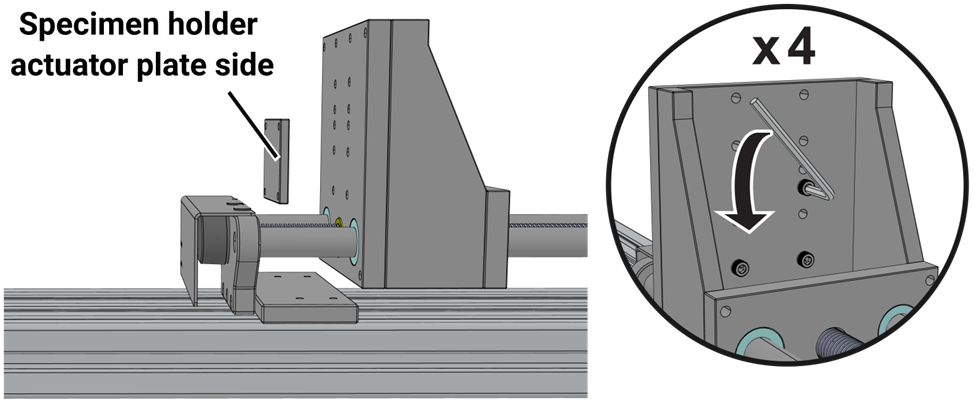
There are (3) square mounting locations in a square pattern of 1.5” per side and 1” rise on center on the face of the actuator plate. The mounting location through-holes are designed for 10-32 sized screws. (4) 10-32 screws are included, securing the compression platen to the actuator plate. The load cell adjusts to 3 heights that align with the heights of the actuator plate . Threading on the load cell is ½” 20 threading. The securing bolt uses a ⅜” hex wrench.
Rotating the handle counter-clockwise moves the actuator plate towards the load cell. Compression forces on the load cell register positive. This results in compression forces providing positive force and displacement values. Reversing the direction allows the actuator plate to move away from the load cell for tension-related experiments.
Both the direction and force measurements can be reversed in the Graphical Analysis software. You may desire to reverse both readings when using the tension grips so that your graphed data shows positive values.
The primary methods of attaching samples to the test frame are through the tension grips or the flat platens. For compression investigations, adjust the plates so that there is minimal contact between the platens and the sample. When using the tension grips, adjust the test frame so that the sample is held horizontally in place without applying significant force to the sample material.
|
|
Changing fixtures
The unit ships with the two sets of fixtures: platens for compression testing and grips for testing in tension. Each set of fixtures has one with a ½” threaded bolt that connects to the load cell, and one with a set of 4 threaded holes to attach to the actuator plate.
There are three vertical positions. We recommend using the lowest position that allows for free movement of the mechanism in order to minimize the torque (and associated flex) applied to the plates.
Zeroing the Sensors
Zero both of the sensors before any data collection. Zero the force sensor before affixing the sample in the fixture. Zero the displacement sensor with the sample in place. To zero either sensor click on the live readout and select “Zero”. You can set the displacement to zero upon starting data collection, as well.
Force Sensor Overload Warning
If the force applied to the force sensor exceeds its rated load of greater than 4,000 N (900 lbs) an audible alarm will sound. This is the indication that no additional force should be applied in order to avoid damaging the sensor. Reverse the direction you are rotating the handle to reduce the force in order to avoid damage to the load cell.
Videos
Calibrating the Sensor
The Go Direct Materials Test Frame encoder cannot be calibrated by the user. It is calibrated before the unit ships. The load cell is also calibrated before it ships. If calibration is required, please refer to www.vernier.com/til/27196
Specifications
|
Range |
Force: ±4000 N Displacement: ~ 0–23 cm |
|
Resolution |
Force: 0.18 N Displacement: 0.51 µm |
|
Battery |
650 mAh Li-Poly Rechargeable |
|
Battery life (single full charge) |
~10 hours continuous data collection |
|
Battery life (long term) |
~300 full charge cycles (several years depending on usage) |
|
Actuator plate |
Maximum travel: 23 cm. Total length of base: 91 cm. Fully extended: 68 cm between load cell and actuator plate |
|
Grip plates |
Depth : 25 mm Width: 37 mm |
|
Platens |
45 mm diameter |
Safety
Go Direct Materials Test Frame is capable of storing energy as it applies force to sample materials being tested. Samples that fail under stress may release that energy very quickly. Vernier recommends the use of safety glasses when using the Test Frame to protect eyes from flying debris.
Care and Maintenance
The Go Direct Materials Test Frame lead screw will benefit from regular (annual) cleaning and lubrication with a lithium grease (or similar light lubricating oil).
Battery Information
The Go Direct Materials Test Frame contains a small lithium-ion battery. The system is designed to consume very little power and not put heavy demands on the battery. Although the battery is warranted for one year, the expected battery life should be several years. Replacement batteries are available from Vernier (order code: GDX-BAT-650).
Storage and Maintenance
To store the Go Direct Materials Test Frame for extended periods of time, put the device in sleep mode by holding the power button down for at least three seconds. The red LED will stop flashing to show that the unit is in sleep mode. Over several months, the battery will discharge but will not be damaged. After such storage, charge the device for a few hours, and the unit will be ready to go.
Exposing the battery to temperatures over 35°C (95°F) will reduce its lifespan. If possible, store the device in an area that is not exposed to temperature extremes.
Water Resistance
The Go Direct Materials Test Frame is not water resistant and should never be immersed in water.
If water gets into the device, immediately power the unit down (press and hold the power button for more than three seconds). Disconnect the sensor and charging cable and remove the battery. Allow the device to dry thoroughly before attempting to use the device again. Do not attempt to dry using an external heat source.
How the Sensor Works
Go Direct Materials Test Frame uses a reflective optical encoder to measure rotation of the lead screw which is translated into position. The encoder disc is mounted on the lead screw and has reflective and non-reflective sectors. The encoder produces two pulse output patterns 90º apart in phase. The movement of the lead screw is determined by counting the pulses. The phase relationship between the output signals determines the direction of rotation.
Go Direct Materials Test Frame translates this count into the translation of the actuator plate.
The load cell uses strain gauge technology to measure a change in resistance with a change in force applied to the sensor.
Troubleshooting
For troubleshooting and FAQs, see www.vernier.com/til/27011
Repair Information
If you have watched the related product video(s), followed the troubleshooting steps, and are still having trouble with your Go Direct Materials Test Frame, contact Vernier Technical Support at support@vernier.com or call 888-837-6437. Support specialists will work with you to determine if the unit needs to be sent in for repair. At that time, a Return Merchandise Authorization (RMA) number will be issued and instructions will be communicated on how to return the unit for repair.
Accessories/Replacements
| Item | Order Code |
|---|---|
| Go Direct 650 mAh Replacement Battery |
GDX-BAT-650 |
|
CB-USB-C-A |
Warranty
Warranty information for this product can be found on the Support tab at www.vernier.com/gdx-mtf/#support
General warranty information can be found at www.vernier.com/warranty
Disposal
When disposing of this electronic product, do not treat it as household waste. Its disposal is subject to regulations that vary by country and region. This item should be given to an applicable collection point for the recycling of electrical and electronic equipment. By ensuring that this product is disposed of correctly, you help prevent potential negative consequences on human health or on the environment. The recycling of materials will help to conserve natural resources. For more detailed information about recycling this product, contact your local city office or your disposal service.
Battery recycling information is available at www.call2recycle.org
Do not puncture or expose the battery to excessive heat or flame.
 The symbol, shown here, indicates that this product must not be disposed of in a standard waste container.
Contact Support
Fill out our online support form or call us toll-free at 1-888-837-6437.